Precisely simulate offsets, find exact transition boundaries, and calculate duration differences for any timezone globally. 🌍
Understanding the Daylight Saving Time Calculator
Navigating the complexities of global timekeeping can be a massive headache, especially when scheduling international meetings, managing server logs, or planning travel. The Daylight Saving Time Calculator is engineered to remove the ambiguity surrounding bi-annual clock shifts by providing a logic-first, interactive interface.
Daylight Saving Time (DST) involves advancing clocks typically by one hour during warmer months so that darkness falls at a later clock time. The tricky part? Not every country observes it. Even among those that do, the exact rules vary significantly. Our calculator uses a predictive selector to compute transitions completely client-side. To verify if a specific date observes these shifts, you can use our DST Checker.
By selecting any IANA identifier, you see the current offset. If coordinating across borders, pair this with our Time Zone Converter. For developers, checking the Image Metadata Viewer can sometimes reveal timestamps that require manual DST adjustment.
Furthermore, the simulator allows you to input local dates and calculates the exact elapsed time. Whether you are a coordinator mapping out a Meeting Time Planner or simply looking for your Time Zone Offset Finder, this tool delivers professional-grade results.
How to Use the DST Calculator
Follow these steps to extract maximum value from the Daylight Saving Time Calculator:
Step 1: Select Your Target Time Zone
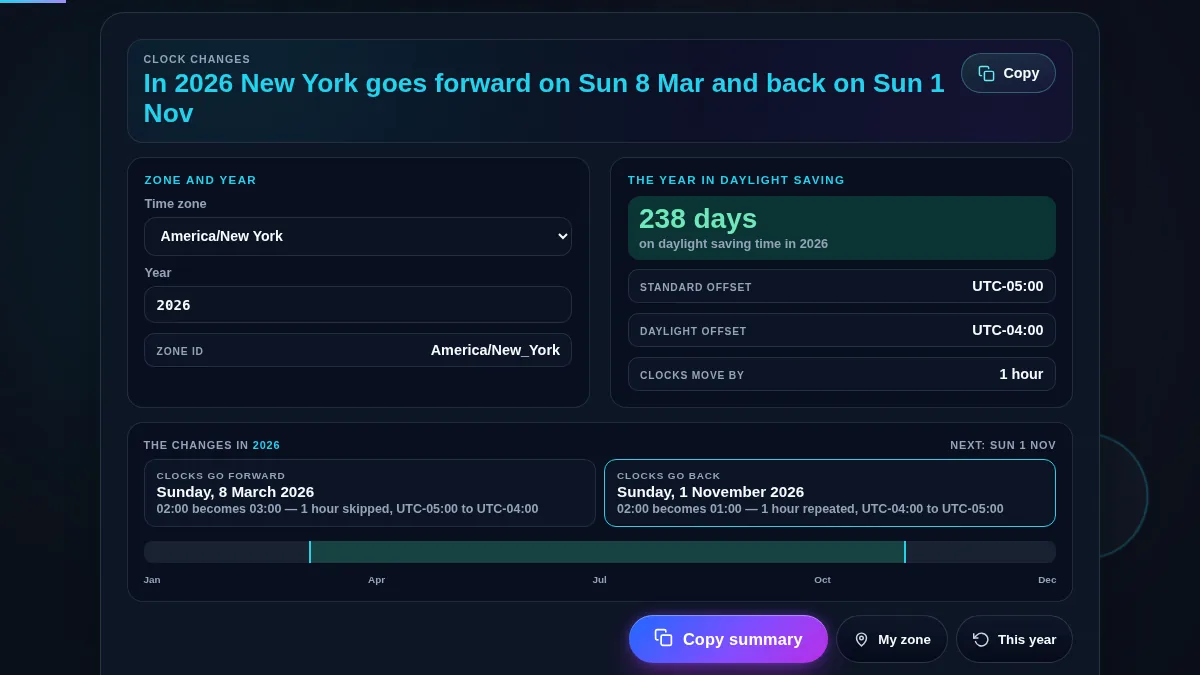
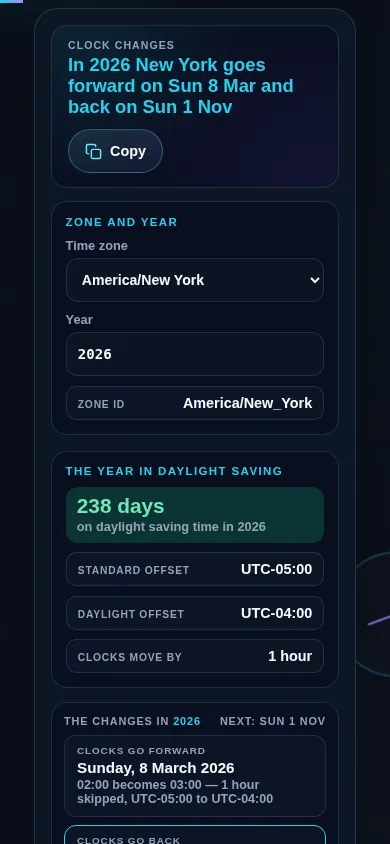
Begin by typing a city name or IANA time zone identifier into the search bar. The tool automatically defaults to your local zone. For immediate conversions, check our UTC to Local Time Converter. The dashboard will immediately show whether DST is currently active.
Step 2: Review the Yearly Timeline
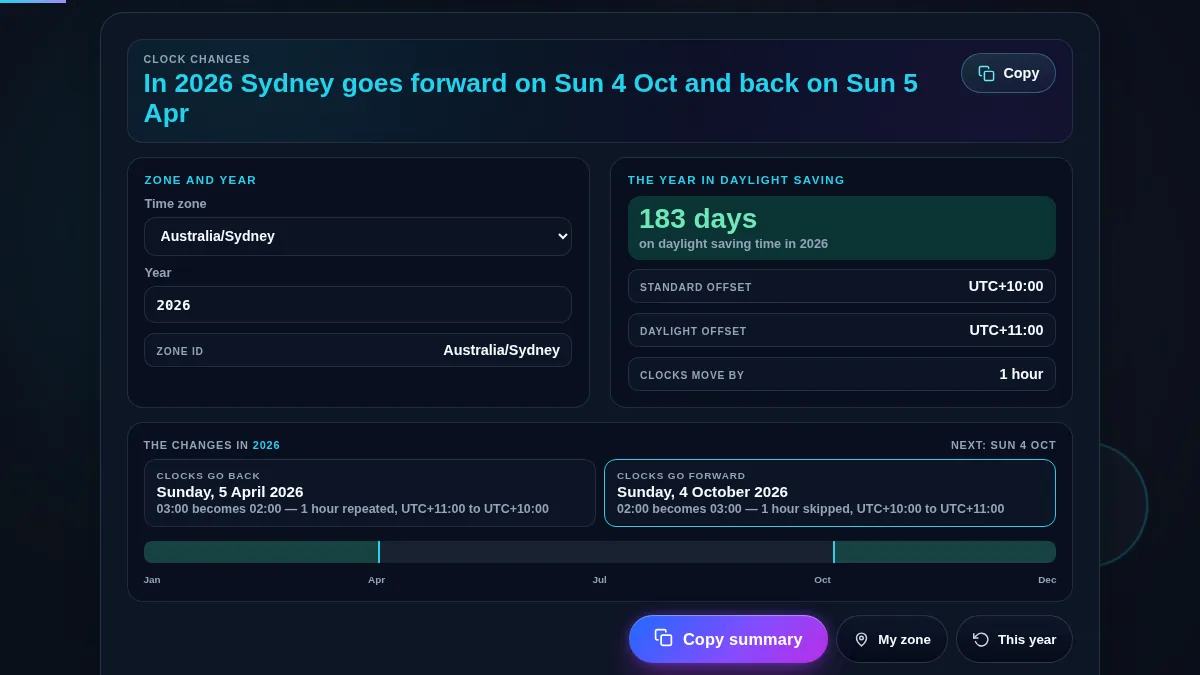
Select the year you wish to analyze. The visual timeline paints a clear picture of when standard time shifts. Transition 1 details the jump forward, while Transition 2 shows the fall back. If you need to plan business schedules, our Business Days Calculator might also be useful.
Step 3: Simulate Date Intervals
Scroll to the simulator panel. If you need to know exactly how many hours transpire—say, scheduling across a transition weekend—enter your local dates. The tool calculates true elapsed time, adjusting for boundary shifts automatically.
Step 4: Export and Documentation
Use "Copy Details" to export transition dates. If you are handling sensitive documents and need to timestamp them correctly, you might also use our Sign PDF tool for final verification.
Frequently Asked Questions (FAQ)
Why do some time zones show no transitions for the selected year?
Not all regions observe Daylight Saving Time. Countries near the equator or large nations like Japan remain on standard time year-round. If you want to see the current time for such regions without transition data, visit our World Clock page. Our engine projects future dates based on established IANA rules.
How does the Duration Simulator handle "skipped" and "repeated" hours?
This is a critical feature. When clocks spring forward, an hour is skipped; when they fall back, an hour repeats. Our simulator uses the ECMAScript internationalization API to detect these shifts deterministically. This is particularly important for calculations involving a Unix Timestamp Converter where absolute time is required regardless of local clock display.
Can I use this calculator for future projections?
Yes! You can change the year to see projected transitions. Note that governments occasionally change DST rules, so while our database is updated, future rules are based on current legislation. For more immediate timing needs, you might prefer our Countdown Timer for upcoming events.