Randomly.online
×

Countdown Timer

Days
Hours
Minutes
Seconds

No active timers

Create a countdown to get started.

Master Your Productivity with the Ultimate Online Countdown Timer

In a world full of distractions, managing time effectively is a superpower. Whether you are a student preparing for an exam, a chef tracking baking times, or a professional working against a deadline, precision is key. Our Countdown Timer is designed to be your reliable digital companion, offering a distraction-free environment to track urgency and progress. Unlike basic clock apps, this tool runs directly in your browser, requiring no downloads or installations, and works perfectly alongside our World Clock to help you coordinate across different zones.

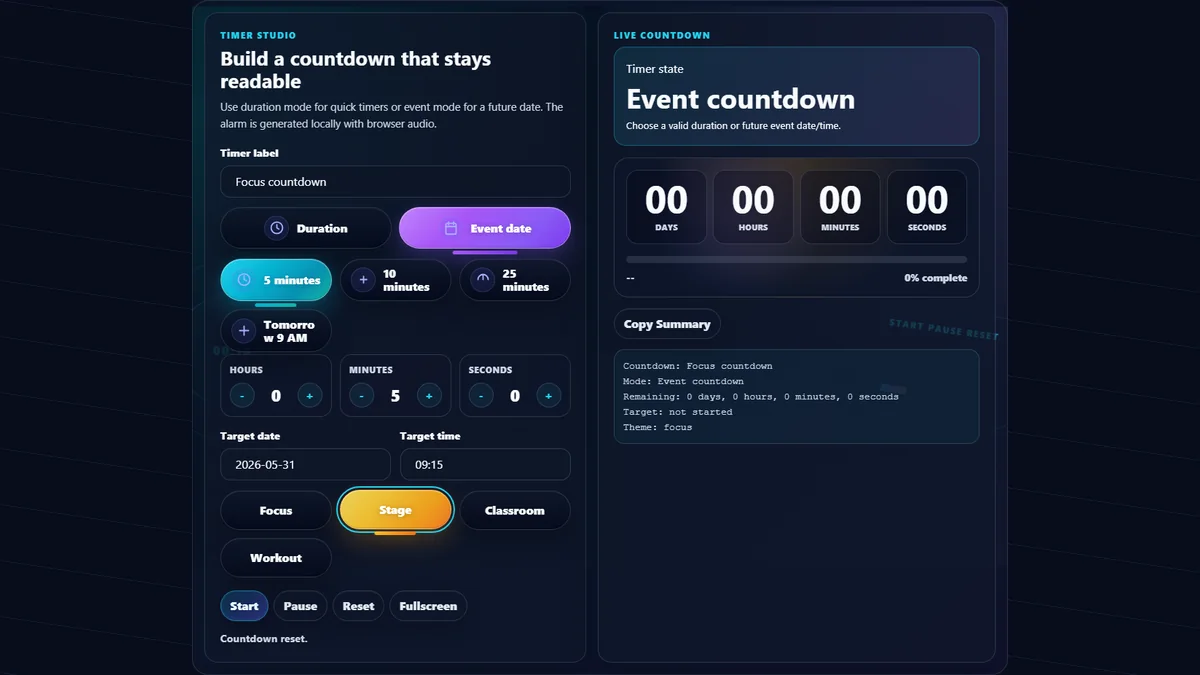
The interface is built with focus in mind. We've stripped away the clutter to present a clean, high-contrast display that breaks down time into Days, Hours, Minutes, and Seconds. To calculate the gap between your target and now, you can also use our Date Difference Calculator for long-term planning. The fluid animations provide a subtle sense of motion, reminding you that time is ticking without causing anxiety. You can create multiple timers simultaneously—perfect for cooking complex meals or managing overlapping tasks—each with its own time duration calculation.

Furthermore, we understand the need for customization. You can label your timers to keep organized. If you need to convert your results into documents, our PNG to PDF and Image Converter tools are available to help you archive your schedules. With full offline support, your active timers persist even if your connection drops.

Using the Countdown Timer is intuitive and fast. Follow these simple steps to set up your first alert:

1. Set the Duration: Use the setup panel at the top of the page. You can input values manually or use the "Up" and "Down" buttons to adjust Days, Hours, Minutes, and Seconds. The controls are designed to be touch-friendly for mobile users.

2. Name Your Timer (Optional): If you are running multiple timers, give each one a specific name in the "Event Name" field. This helps you distinguish between tasks like "Study Break" and "Oven Timer."

3. Start the Countdown: Click the "Start Countdown" button. Your timer will immediately appear in the dashboard list below. A progress bar will begin to fill or deplete based on the time remaining.

4. Manage Active Timers: Each card has its own controls. You can Pause the timer if you need to take a break, Resume it when you return, or Reset it to the original duration. If you need to duplicate a timer, simply create a new one with the same settings.

Does this timer work if I close the tab?
To save resources, browsers often stop scripts when a tab is closed. However, our timer uses local storage to remember your timestamp. If you accidentally close the tab and reopen it immediately, the timer will calculate the difference and continue counting down correctly. For precision tracking of life milestones, check our Age Calculator.

Can I run multiple countdowns at once?
Yes! You can create as many timers as you need. They will stack vertically in the dashboard. This is excellent for multi-stage cooking, interval training, or managing various deadlines throughout the workday. Each timer functions independently.

Is an internet connection required?
The initial page load requires internet access, but once loaded, the Countdown Timer runs entirely client-side using JavaScript. You can disconnect from the internet, and the timers will continue to function perfectly, making it a reliable tool for travel or offline work.