The Date to Timestamp Converter
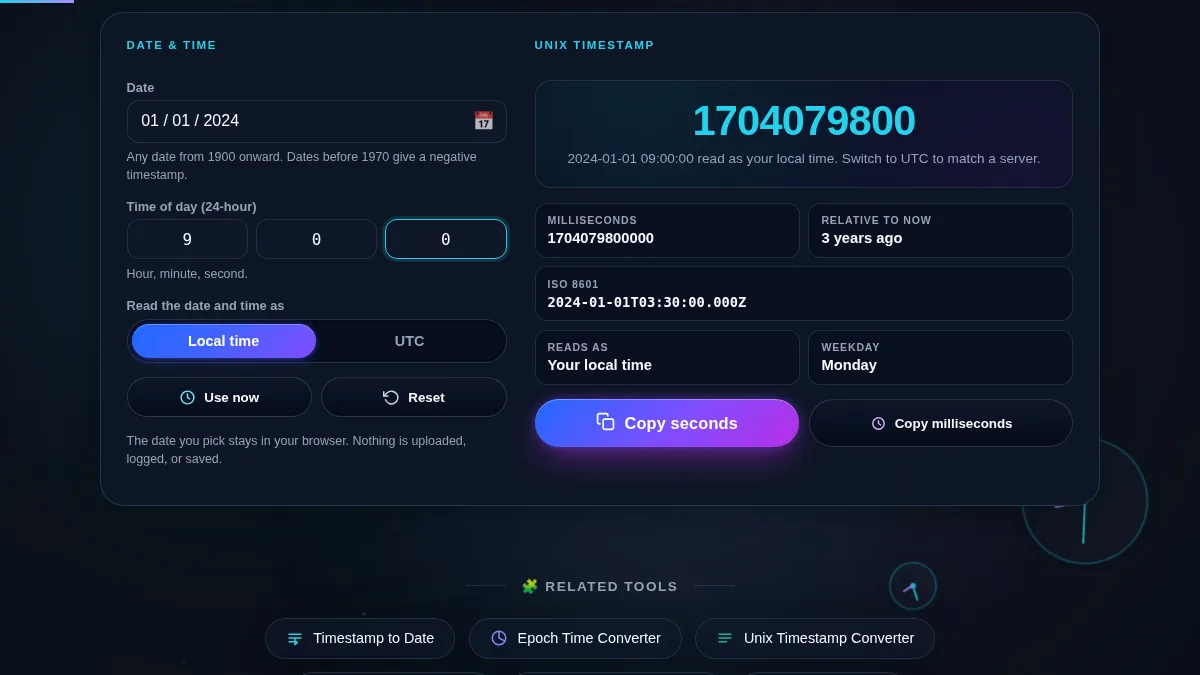
In the world of software development, database management, and system architecture, the precision of time is non-negotiable. The Date to Timestamp Converter offers a sharp, execution-focused workspace designed to eliminate the friction typically associated with converting human-readable calendar dates into machine-readable Unix timestamps. Unlike traditional pickers that rely on fragile text inputs or confusing dropdowns, this tool introduces a tactile, scroll-wheel interface that allows for rapid adjustment of Year, Month, Day, Hour, Minute, and Second values.
Unix time, or Epoch time, tracks the number of seconds that have elapsed since January 1, 1970 (UTC). It is the backbone of computing time, used in everything from file systems to API authentication. However, calculating it manually or relying on vague mental math is prone to error, especially when time zones are involved. This tool addresses that complexity head-on. By providing a side-by-side view of UTC and Local time interpretations, developers can instantly verify that the timestamp they are generating aligns exactly with the moment they intend to capture.
Whether you are debugging a server log, setting a countdown timer for a product launch, or validating data expiration fields, accuracy is paramount. This environment executes entirely in your browser, meaning your conversions are instant, private, and free from network latency. It serves as a reliable bridge between the human concept of a calendar date and the absolute precision of the Unix epoch.
How to Use This Workspace
The interface is designed for speed and touch responsiveness. To begin, observe the central stage containing the scroll wheels. Each column represents a specific unit of time. You can interact with these wheels using a mouse scroll, a swipe gesture on mobile devices, or by clicking and dragging. As you adjust any value—say, rolling the year from 2024 to 2025—the Unix timestamp displayed below updates in real-time. There is no "Submit" button; the feedback is immediate.
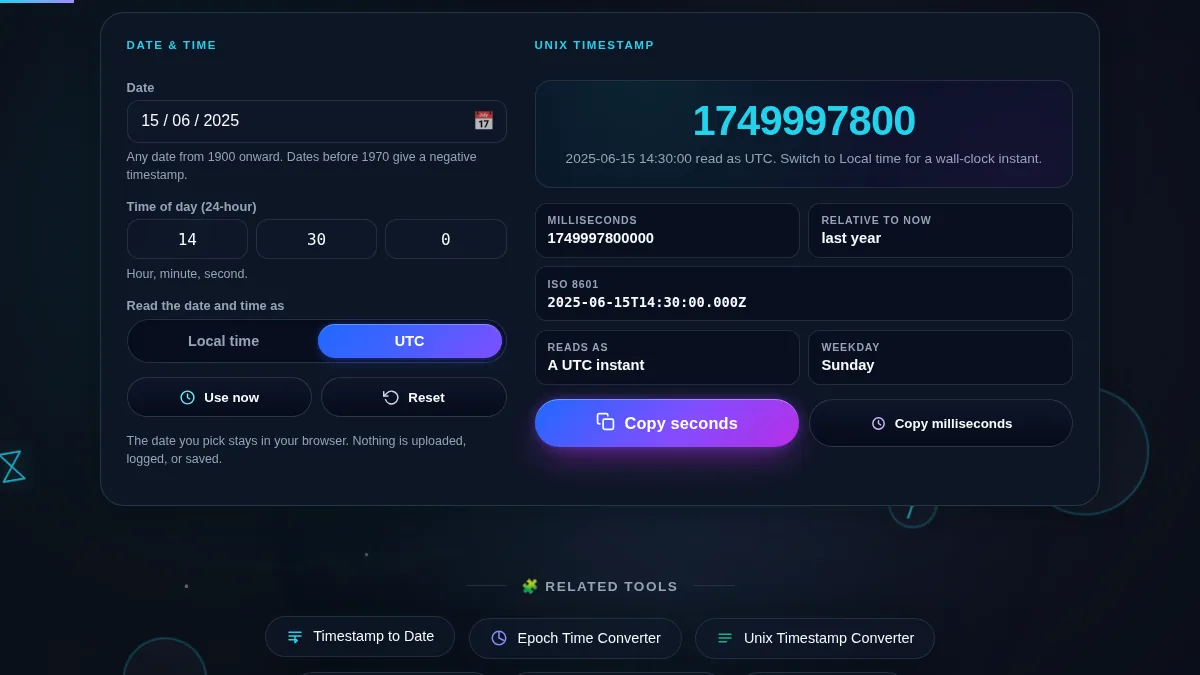
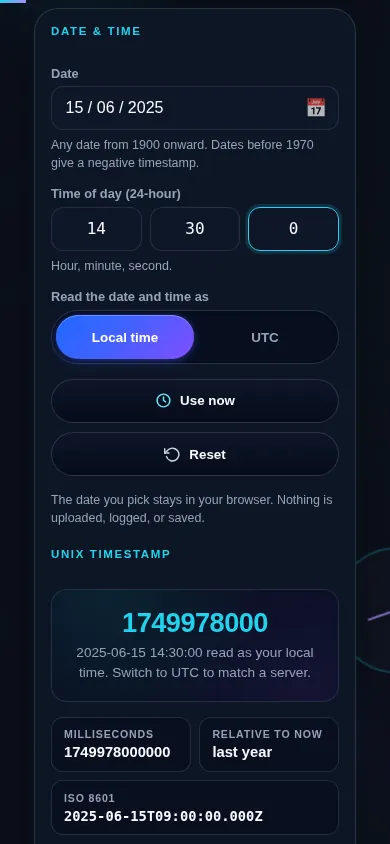
Time Zone Control: At the top of the workspace, you will find a toggle between "Local" and "UTC". This is critical. If "Local" is selected, the tool interprets the date on the wheels as being in your computer's current time zone. If you switch to "UTC", it treats the selection as Coordinated Universal Time. The results area will dynamically show you both the Local and UTC equivalent strings to ensure you aren't off by several hours due to a timezone offset error.
Visualizing Time: Below the numeric result, a timeline bar provides spatial context. It visualizes where your selected date sits relative to the Unix Epoch (1970) and the "Year 2038 problem" horizon. This helps in quickly identifying if a date is in the deep past or far future. Once you have your desired timestamp, use the "Copy Timestamp" button to instantly place the integer into your clipboard, ready for use in your code or database queries. For complex date arithmetic, such as finding the duration between two specific points, you might also find our Date Difference Calculator useful.
Frequently Asked Questions
What is a Unix Timestamp and why is it used?
A Unix timestamp is a way to track time as a running total of seconds. This count starts at the "Unix Epoch" on January 1, 1970, at 00:00:00 UTC. Therefore, the timestamp for the Epoch is 0. This format is widely used in computing because it is a simple integer (or long integer) that is unambiguous across different regions and languages. Unlike a string such as "01/05/2024", which could mean January 5th in the US or May 1st in Europe, a timestamp like `1704412800` refers to an exact, specific second in history regardless of where you are located. This makes it ideal for storing dates in databases, logging events, and sorting records chronologically. If you need to reverse this process, checking our Timestamp to Date tool is the recommended workflow.
Does this tool handle Leap Years and Days correctly?
Yes, the system employs strict validation logic. The "Day" scroll wheel is dynamic; it adjusts its maximum range based on the Month and Year you have selected. For example, if you select February and the Year 2024 (a leap year), the Day wheel will allow you to scroll up to 29. If you change the year to 2023, the wheel will automatically snap back to 28 if it was previously on 29. This prevents the generation of invalid dates (like February 30th) which would otherwise result in calculation errors or "Not a Number" (NaN) outputs. This logic mirrors the robustness found in our dedicated Leap Year Checker, ensuring that every timestamp generated corresponds to a valid calendar instance.
Why is there a distinction between Local and UTC mode?
Time zones are the most common source of bugs in date-related programming. When you say "8:00 AM," that moment happens at different absolute times depending on whether you are in New York, London, or Tokyo. In "Local" mode, this tool uses your browser's system settings to determine your offset from UTC. It calculates the timestamp assuming the time you entered is "your time." In "UTC" mode, it assumes the time entered is already standardized to GMT/UTC zero-offset. This distinction allows you to generate timestamps for events happening in other parts of the world without manually adding or subtracting hours. For more granular control over these offsets, specifically between different regions, the Time Zone Converter is an excellent companion tool.