Clean & Format

Clean up messy text: extra spaces, stray line breaks, blank lines, duplicate lines, tabs and punctuation.

100% Browser-Based Local Processing

Spacing — nothing you typed is lost

These three change only the gaps between things. Every word, line break and mark comes through exactly as you wrote it, so you can run them without reading the result first.

Line structure — your words survive, their arrangement changes

These two decide where the text breaks. Nothing is deleted, but the shape of the document is not what it was — which is the point when a PDF broke every sentence in half.

Content — these delete something you typed

The only three tools here that remove your words and marks rather than the space around them. Read the result pane before you accept one; it counts exactly what went.

Spacing Line structure Content Only the three content tools delete a word or a mark. The spacing and line tools change the gaps and the breaks, and leave everything you typed exactly where it was.

Fixed the mess and now need the capitalisation? Case Conversion changes the letters these tools deliberately leave alone. To measure what is left, use Count & Analyze Text. Or browse all 60 text tools.

Privacy Focused

🔒 Local Processing. Your text never leaves your device.

Instant Results

🌐 Fully Client-Side. Runs instantly in your browser.

No Signup

⚡ No accounts. No API keys. Just open and use.

Browser Based

🚀 No installs, no sign-ups, no character limits.

What does cleaning up text actually mean?

Cleaning up text means removing the formatting that came with it rather than the words. Pasted text arrives carrying double spaces, line breaks in the middle of sentences, blank lines, tabs and repeats. Each tool here removes one of those and leaves everything else exactly as you wrote it.

Text almost never arrives clean. Copy a paragraph out of a PDF and every line breaks where the page did, not where the sentence does. Copy from a spreadsheet and the columns come across as tabs. Copy from an email chain, a scanned document or somebody else's word processor and you get double spaces after full stops, a stray non-breaking space that looks exactly like a normal one, blank lines where a page ended, and the same line pasted twice because somebody merged two lists.

None of that is a writing problem, and none of it is worth fixing by hand. Each tool in this group removes exactly one kind of mess, which is the point of splitting them up: a single "clean my text" button would have to guess which of your blank lines were deliberate, and it would be wrong often enough that you would stop trusting it. Eight narrow tools that each do one visible thing are safer than one wide one that does eight invisible things.

Every tool here keeps your original on screen beside the result, so you can read what changed before you accept it. The result pane counts what was removed rather than what moved — a cleaner that deletes two blank lines says "2 characters removed", not a positional score that would call the same edit twelve changes. And nothing is uploaded: a contract, a client's copy deck or an export full of customer names is cleaned by JavaScript running on your own machine.
How to clean up pasted text

Step 1: Pick the tool named after the mess you have

If you are not sure, the groups below sort them by what they touch — spacing, line structure, or actual content.

Step 2: Paste your text into the left pane

The cleaned version appears on the right as you type, and your original is never touched.

Step 3: Adjust the switches

Most of them exist because the "right" answer differs between prose and code — indentation is deliberate in a code file and accidental in a pasted paragraph, so it has its own switch rather than a guess.

Step 4: Read the result pane

It tells you how many characters and lines went, which is the fastest way to notice that a switch did more than you meant.

Step 5: Copy the result, download it as a .txt, or press Apply to my text to move it into the editor as a single undo step

Copy the result, download it as a .txt, or press Apply to my text to move it into the editor as a single undo step.

Step 6: Use Send to to chain cleaners without retyping — strip the line breaks out of a PDF paste, then send that result straight to Remove Extra Spaces

Use Send to to chain cleaners without retyping — strip the line breaks out of a PDF paste, then send that result straight to Remove Extra Spaces.

Clean & Format in action

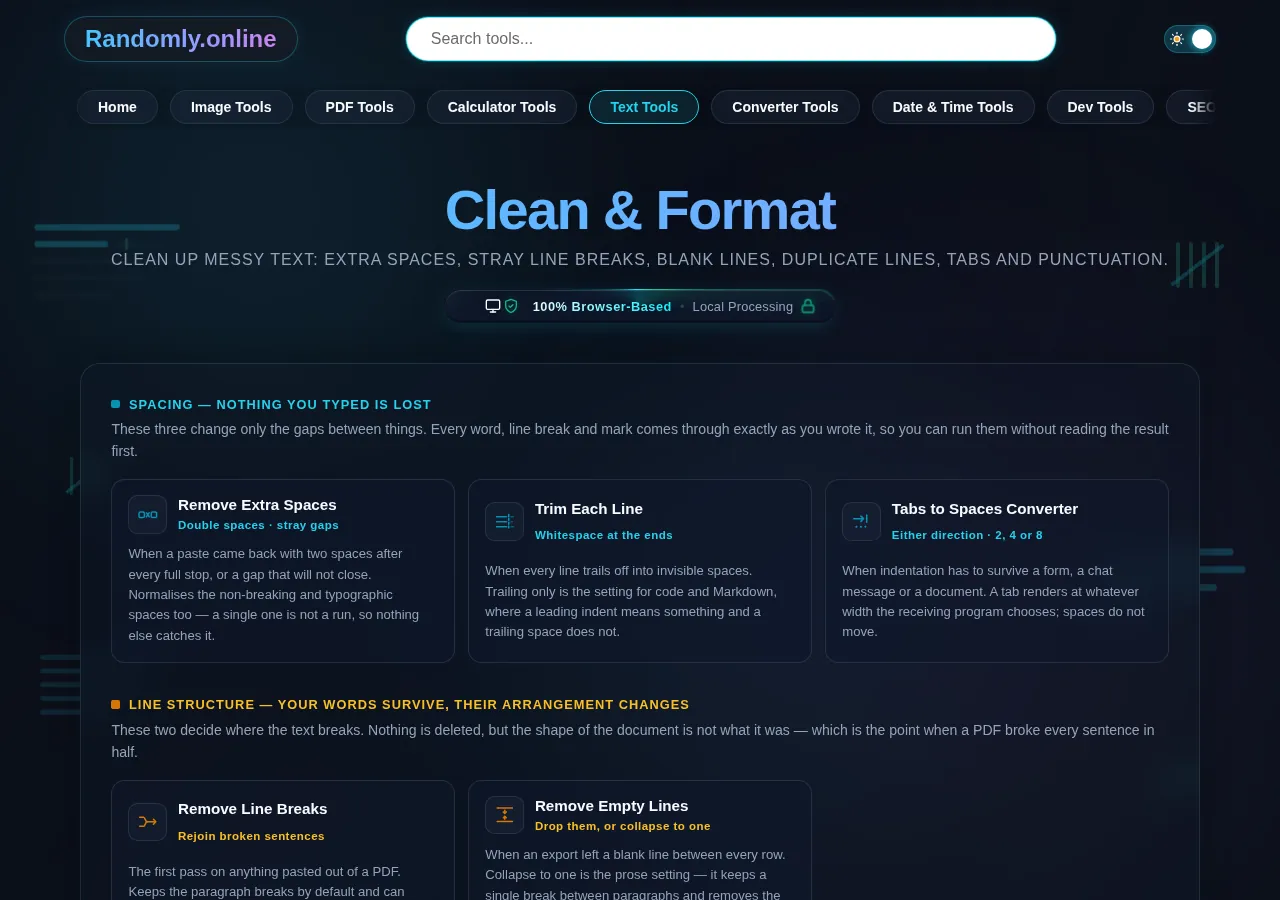
The Clean & Format cluster grid, eight text cleanup tools grouped by spacing, line structure and content, dark mode
The eight-tool cluster grid
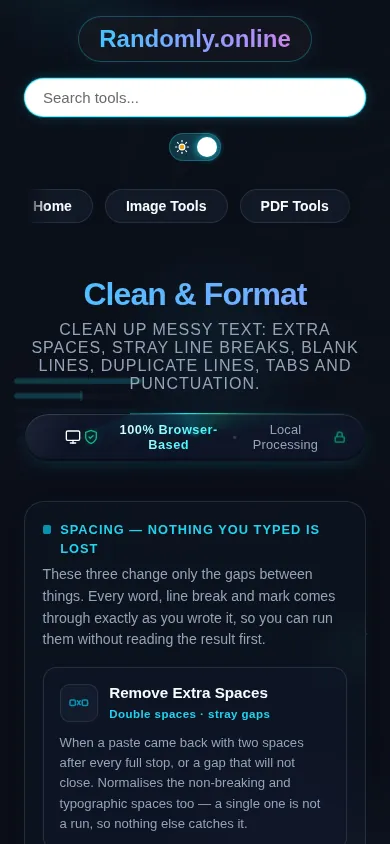
The Clean & Format cluster on a phone, the eight tool cards stacked in a single column
Mobile (grid stacked to one column)

Which cleaner you need, and the order to run them in

Sort the mess by what it is made of. Spacing problems — double spaces, a space before a comma, spaces trailing off the end of a line, tabs where spaces belong — never change your words, only the gaps between them. Structure problems — sentences broken across lines, blank lines between every row, indentation that came from somewhere else — change where the text sits without losing any of it. Content problems — the same line twice, a repeated word, punctuation you want gone — actually delete something you typed, and are the only ones worth reading the result over.

Order matters more than people expect, because these tools feed each other. Fix the line structure first, then the spacing. Joining lines from a PDF leaves a space at every join, so running Remove Extra Spaces first and Remove Line Breaks second re-introduces exactly the mess you just cleaned; the other way round, one pass does it. Deduplicate before you trim, not after — a line ending in a space is not equal to the same line without one, so a duplicate list where half the rows have trailing spaces will not dedupe until the spaces go. Remove Duplicate Lines has a *compare trimmed* switch for precisely this, but running Trim Each Line first works too and is easier to check. Strip punctuation last, if at all, because most of the other tools use punctuation to find sentence boundaries.

Two habits are worth building. Look at what a cleaner reports, not just at what it printed — a tool that says "412 characters removed" on a paragraph you thought had a few double spaces has done something you did not intend, and the count is the only place that shows up. And be suspicious of a gap that will not close. A single non-breaking space is not part of a run, so a naive collapse never sees it; it reads as a space, measures as a space, and defeats every cleaner you try. Remove Extra Spaces normalises the whole Unicode space family — non-breaking, thin, hair, em, ideographic — to a plain space before it collapses anything, which is the difference between a tool that mostly works and one you can trust with a document.

Frequently Asked Questions

What is the fastest way to clean up text pasted from a PDF?

Two passes, in this order. Run Remove Line Breaks first with *keep the paragraph breaks* on, which rejoins the sentences the page broke while leaving real paragraphs apart, and switch on *rejoin hyphenated words* so *encyclo-* and *pedia* become one word again. Then send that result to Remove Extra Spaces, which closes the gaps the joins leave behind. Doing it the other way round re-creates the mess you just cleaned.

In what order should I run these cleaners?

Structure, then spacing, then content. Fix where the lines break before you touch the gaps, because joining lines creates new spaces. Trim or deduplicate before you strip punctuation, because the other tools use punctuation to find sentence boundaries. The one order that actively wastes a pass is spacing before line breaks — every join you make afterwards puts a fresh space back in.

Why will a gap in my text not disappear?

It is almost certainly not a normal space. Non-breaking spaces, thin spaces and the ideographic space all look identical on screen, measure as one character, and survive any cleaner that only collapses *runs* — a single one is not a run. Remove Extra Spaces normalises the whole Unicode space family to a plain space before it collapses anything, which is why it clears gaps that a find-and-replace on the space bar cannot.

Will these tools change my words, or only the formatting?

It depends on the group, and the page says which is which. The spacing tools and the line tools never delete a word — they only change the gaps and the line breaks. The three content tools genuinely remove things you typed: duplicate lines, repeated words and punctuation marks. Those are the ones worth reading the result pane over before you accept it.

Does removing line breaks destroy my paragraphs?

Not unless you ask it to. *Keep the paragraph breaks* is on by default, and it treats a blank line as a paragraph boundary that survives while every line break inside a paragraph goes. Clear it and the whole document collapses to a single block, which is what you want for a text field with a length limit and almost never what you want for prose.

Why are my duplicate lines not being removed when they look identical?

Because they are not identical to the computer. A trailing space, a leading tab or a different capital letter all make two lines different, and lists assembled from more than one source are full of exactly that. Remove Duplicate Lines has switches for both — *ignore capitalisation* and *compare trimmed* — or you can run Trim Each Line first, which fixes the cause rather than working around it.

Should I convert tabs to spaces, or spaces to tabs?

Follow the file, not your preference. Python, Go and most Makefiles have strong conventions; a JavaScript or CSS project usually follows whatever its formatter is configured to do. If you are pasting code into a form, a chat message or a document, convert to spaces — tabs render at whatever width the receiving program decides, so the indentation you carefully lined up will not survive the trip.

Does my text get uploaded anywhere?

No. Every clean-up here runs in your browser as ordinary JavaScript, on your own machine. Nothing is sent to a server, nothing is stored on one, and the pages keep working with your network disconnected once loaded. The Send to button that carries text between tools keeps it inside the browser tab — it is never put in the address bar, where it would otherwise end up in analytics and browser history.

Can I clean a whole document, not just a paragraph?

Yes. Paste as much as you like, or open a .txt file with the Open file button or by dropping it onto the editor. The cleaning is debounced so a long document stays responsive while you type. Your original stays in the left pane throughout, so nothing is committed until you press Apply to my text or copy the result out.

What if a cleaner removes more than I wanted?

Nothing is lost. Your original text stays in the left pane and the cleaned version is a separate read-only pane, so switching a setting off restores it instantly — there is nothing to undo. Even Apply to my text, which does overwrite the editor, lands as a single undo step, so one press of Ctrl+Z brings the original back exactly as it was.

Still have questions?

If you can't find the answer you're looking for, feel free to contact our support team.

Contact Us