Remove Duplicate Lines

Remove duplicate lines from a list or text, keeping only unique lines, with case-insensitive and trim options.

100% Browser-Based Local Processing
15px

Ln 1, Col 1 No selection

Keep

One of each keeps the first time a line appears and the order it appeared in. Only the repeats is the one for auditing a list — it shows you what was duplicated rather than what survived.

Deduplicated lines Nothing to clean yet
Lines removed
0
Lines kept
0
Distinct lines
0

Most dedupers sort as a side effect of how they work, which quietly destroys a list you had already arranged. This one keeps your order unless you ask for A–Z above.

Privacy Focused

🔒 Local Processing. Your text never leaves your device.

Instant Results

🌐 Fully Client-Side. Runs instantly in your browser.

No Signup

⚡ No accounts. No API keys. Just open and use.

Browser Based

🚀 No installs, no sign-ups, no character limits.

What is a Remove Duplicate Lines?

Remove Duplicate Lines deletes repeated lines from your text, keeping only the unique ones. By default it keeps the first occurrence and preserves order, with options to ignore case and trim whitespace before comparing. Paste a list and dedupe it in one click. It runs entirely in your browser, so your data stays private.

Lists pile up duplicates — merged email lists, combined exports, log files, anything you've appended to over time. Removing the repeats by hand is slow and error-prone.

This tool dedupes your lines instantly, keeping order and telling you how many it removed, all in your browser. Nothing is uploaded. Paste, dedupe, and copy.
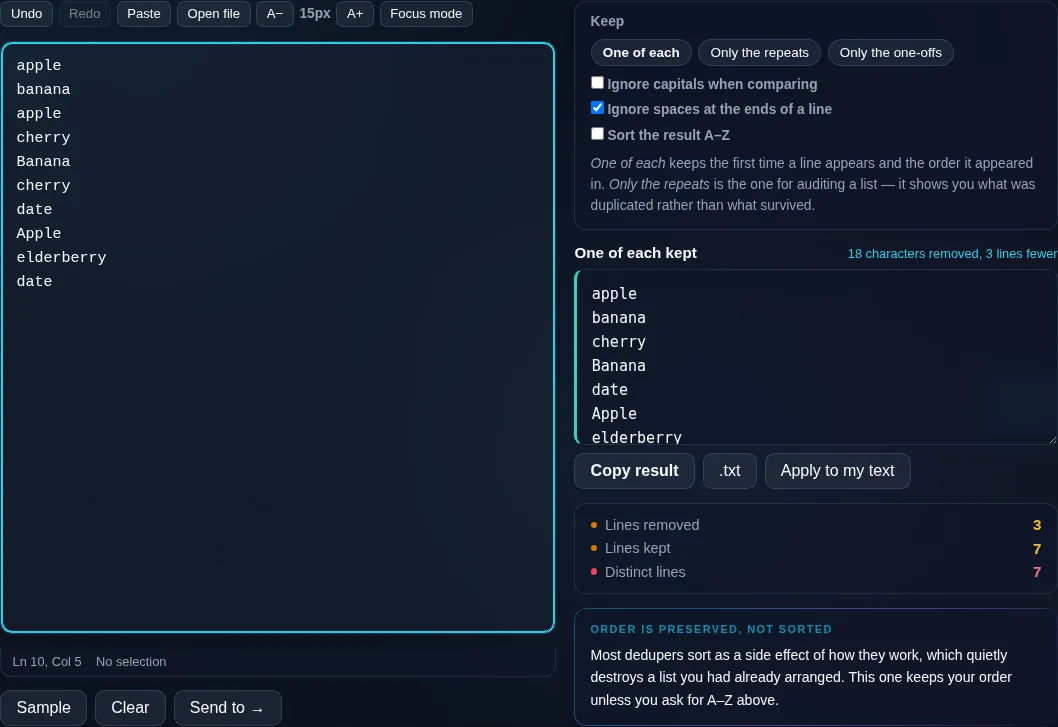

How to remove duplicate lines

Step 1: Paste your list or text, one item per line

Paste your list or text, one item per line.

Step 2: Set options — ignore case and trim whitespace before comparing — if needed

Set options — ignore case and trim whitespace before comparing — if needed.

Step 3: Remove duplicates, then copy or download the unique lines

Remove duplicates, then copy or download the unique lines.

Remove Duplicate Lines in action

Remove Duplicate Lines deduping a list in the browser.
Deduped list
A list with duplicate lines removed and a removed-count shown.
Options + count
Removing duplicate lines on a phone, no app installed.
Mobile (stacked)

How duplicates are detected

By default, two lines are duplicates only if they're exactly identical, and the tool keeps the first occurrence while removing later ones, preserving the original order of your list. Two options make matching smarter: 'ignore case' treats 'Apple' and 'apple' as the same, and 'trim before comparing' ignores leading and trailing whitespace so 'item' and ' item ' match — both catch near-duplicates that exact matching would miss. It reports how many lines were removed, and offers an optional sort. There are also inverse modes if you need them: keep only the lines that were duplicated, or keep only lines that appear exactly once. Everything runs locally in your browser, so even large lists dedupe instantly and nothing is uploaded. To compare two separate lists, use Compare Two Lists; to order the result, Sort Text Lines.

Frequently Asked Questions

How do I remove duplicate lines?

Paste your text with one item per line and click Remove Duplicate Lines. Repeated lines are deleted, the first occurrence of each is kept, and the original order is preserved. The tool also shows how many duplicates it removed, then you can copy or download the unique list.

Does it keep the order of my list?

Yes, by default. It keeps the first time each line appears and removes later repeats, so the surviving lines stay in their original order. If you'd rather have them alphabetized, there's an optional sort, or you can use the Sort Text Lines tool afterwards.

Can it ignore case when finding duplicates?

Yes. Turn on the case-insensitive option and 'Apple', 'apple', and 'APPLE' are treated as the same line, so only one is kept. Leave it off when capitalization is meaningful and you want only exact matches removed.

What if lines differ only by spaces?

Use the trim-before-compare option. It ignores leading and trailing whitespace when matching, so 'item' and ' item ' count as duplicates. This catches the near-duplicates that come from inconsistent spacing in merged or pasted lists.

Can I see which lines were duplicated?

Yes. Besides removing duplicates, there are inverse modes: keep only the lines that appeared more than once (to review what was duplicated), or keep only lines that appear exactly once. The tool also reports the number of duplicates removed.

Is this different from removing duplicate words?

Yes. This works line by line, which suits lists and data with one entry per line. Remove Duplicate Words deduplicates repeated words within text. Use this for list and row deduplication, and the words tool for tidying repeated words in prose.

Is my text private — is anything uploaded?

No. Everything runs in your browser, so whatever you type or paste is processed on your own device and never uploaded to a server. Nothing is stored once you close the tab. That keeps your text — notes, code, documents, lists — completely private.

Is it free, and do I need to sign up?

Yes, it's completely free with no account, no trial, and no limit on how many times you use it. Because it runs entirely in your browser, there are no server costs, no usage caps, and no watermark or branding added to your text.

Does it work on a phone?

Yes. It runs in your phone's browser with nothing to install, so you can use it on Android or iOS. The layout adapts to small screens, so you can paste text, get the result, and copy it on the go just as easily as on a computer.

Does it work offline?

Once the page has loaded, it runs entirely on your device, so it keeps working without a connection — which is also why nothing is uploaded. You only need to be online to open the page the first time; after that the tool works locally.

Can I copy or download the result?

Yes. You can copy the result to your clipboard with one click, and longer output can be downloaded as a text file. Everything is processed locally, so copying and downloading are instant with no upload step and no waiting.

Is there a limit on how much text I can process?

There's no artificial cap, because the work happens on your device rather than a server. The practical limit is your device's memory, so very large inputs are smoother on a computer than an older phone. For most everyday text, processing is effectively instant.

Still have questions?

If you can't find the answer you're looking for, feel free to contact our support team.

Contact Us