Trim Each Line

Trim leading and trailing whitespace from every line of your text, with control over which end.

100% Browser-Based Local Processing
15px

Ln 1, Col 1 No selection

Trim which end

Trailing only is the one to reach for on code and on Markdown, where a leading indent carries meaning and a trailing space does not. To collapse the gaps between words as well, use Remove Extra Spaces.

Trimmed lines Nothing to clean yet
Lines
0
Lines trimmed
0
Characters removed
0

A space at the end of a line survives copy-paste, breaks exact-match lookups in a spreadsheet, and in Markdown two of them silently become a line break. Nothing on screen shows them, which is why they last so long.

Privacy Focused

🔒 Local Processing. Your text never leaves your device.

Instant Results

🌐 Fully Client-Side. Runs instantly in your browser.

No Signup

⚡ No accounts. No API keys. Just open and use.

Browser Based

🚀 No installs, no sign-ups, no character limits.

What is a Trim Each Line?

Trim Each Line removes the leading and trailing whitespace from every line of your text. Choose to trim both ends, just the start, or just the end. It's the fix for lines with stray indentation or invisible trailing spaces. It runs entirely in your browser, so your text stays private.

Lists and data copied from elsewhere often have hidden whitespace — leading spaces that misalign items, or trailing spaces you can't see but that break comparisons and exact matches. Trimming each line cleans it up.

This tool trims every line in one click, with control over which end, entirely in your browser. Nothing is uploaded. Paste, trim, and copy.
How to trim each line

Step 1: Paste or type your text into the box

Paste or type your text into the box.

Step 2: Choose to trim both ends, leading only, or trailing only

Choose to trim both ends, leading only, or trailing only.

Step 3: Copy the trimmed text or download it as a .txt file

Copy the trimmed text or download it as a .txt file.

Trim Each Line in action

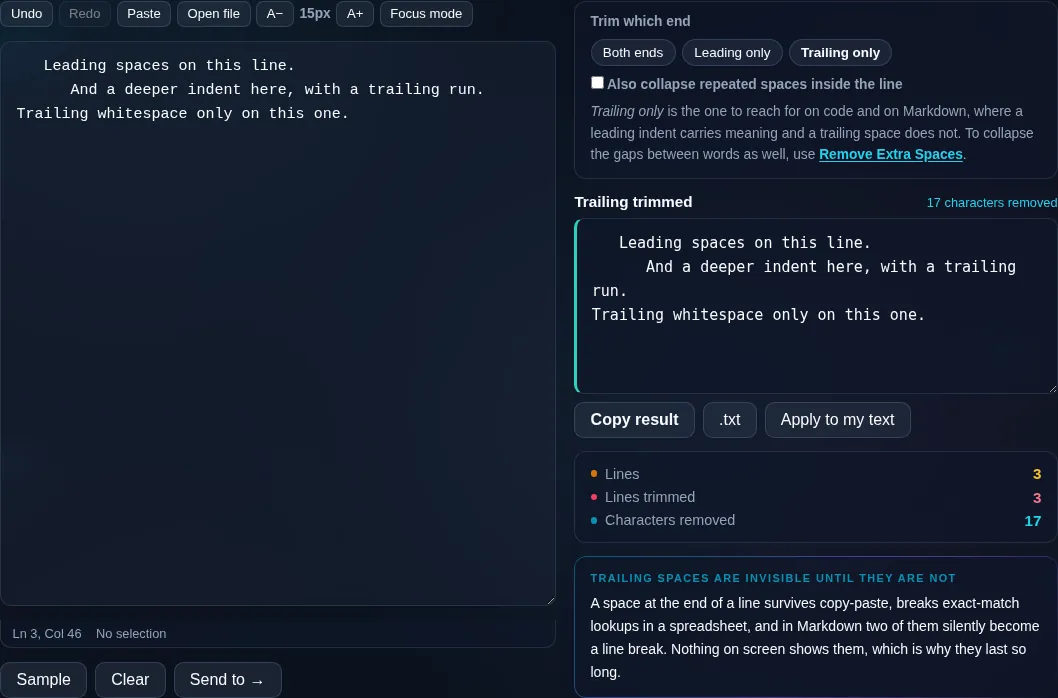
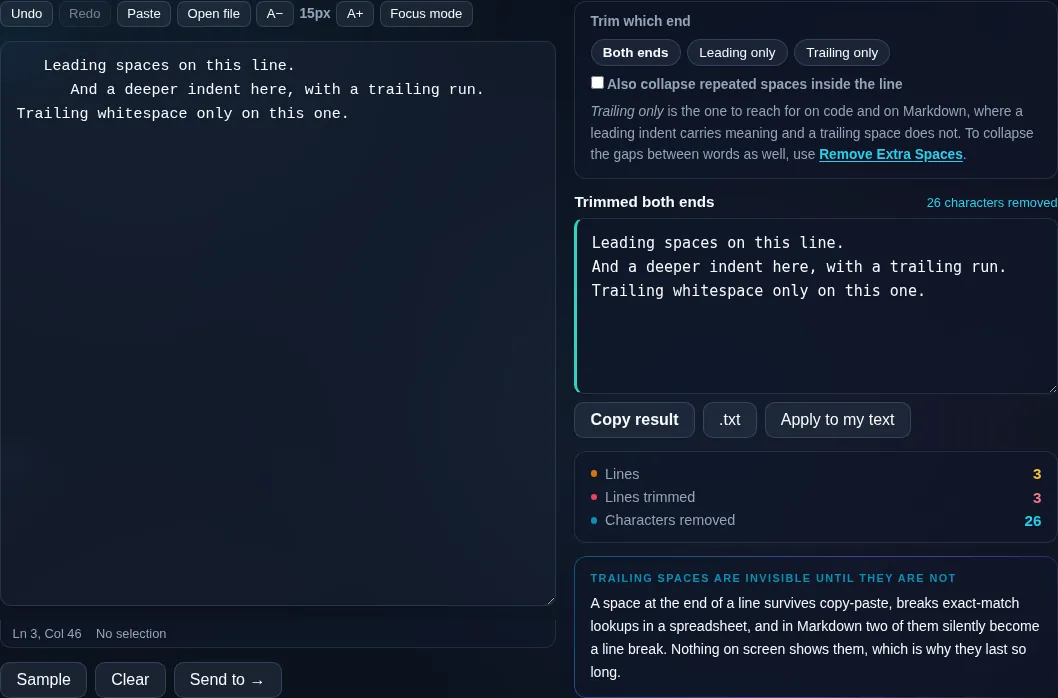
Trim Each Line removing line whitespace in the browser.
Trimmed lines
Lines trimmed of leading and trailing spaces.
Direction control
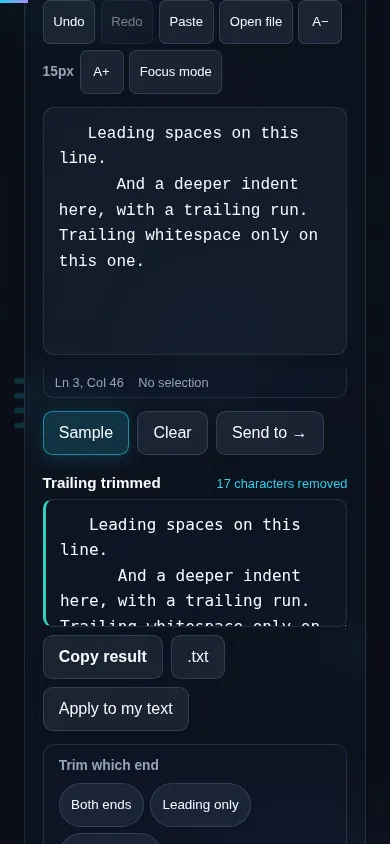
Trimming each line on a phone, no app installed.
Mobile (stacked)

Why per-line trimming matters

Trimming removes the whitespace at the start and end of each line — spaces and tabs that are often invisible but cause real problems. Trailing whitespace breaks exact-match comparisons, inflates diffs, and is flagged by many code linters; leading whitespace misaligns list items and can change meaning in whitespace-sensitive formats. This tool lets you trim both ends, or just one, so you can strip trailing spaces while keeping intentional indentation, or vice versa. An extra option collapses runs of inner double spaces if you want a fuller clean. It works line by line, so the number and order of lines is unchanged. Everything runs locally in your browser, so nothing is uploaded. This complements the whole-text Trim Text tool and Remove Extra Spaces; for blank lines, see Remove Empty Lines.

Frequently Asked Questions

What does trimming each line do?

It removes whitespace — spaces and tabs — from the start and end of every line. So a line like ' item ' becomes 'item'. It cleans up the leading and trailing whitespace that's usually invisible but causes alignment and matching problems.

Can I trim only the trailing whitespace?

Yes. You can choose to trim both ends, only the leading (start) whitespace, or only the trailing (end) whitespace. Trimming only trailing is common for code and data, where end-of-line spaces are unwanted but leading indentation is intentional.

Why is trailing whitespace a problem?

Because it's invisible yet harmful: it breaks exact text comparisons, makes version-control diffs noisy, can fail strict data validation, and is flagged by many linters. Trimming it removes a whole class of subtle bugs and formatting issues you can't easily see.

Does it change the number of lines?

No. Trimming works within each line, so the number of lines and their order stay exactly the same — only the whitespace at the ends of each line is removed. Blank lines remain blank; use Remove Empty Lines if you want to drop those.

How is this different from Remove Extra Spaces?

Trim Each Line targets the whitespace at the start and end of every line. Remove Extra Spaces collapses multiple spaces anywhere within the text. They're complementary — trim cleans line edges, while Remove Extra Spaces fixes double spaces inside the text. You can run both.

Can it also clean up indentation?

You decide. To strip indentation, trim the leading whitespace; to keep intentional indentation (like code), trim only trailing. There's also an option to collapse inner double spaces if you want a thorough cleanup beyond just the line edges.

Is my text private — is anything uploaded?

No. Everything runs in your browser, so whatever you type or paste is processed on your own device and never uploaded to a server. Nothing is stored once you close the tab. That keeps your text — notes, code, documents, lists — completely private.

Is it free, and do I need to sign up?

Yes, it's completely free with no account, no trial, and no limit on how many times you use it. Because it runs entirely in your browser, there are no server costs, no usage caps, and no watermark or branding added to your text.

Does it work on a phone?

Yes. It runs in your phone's browser with nothing to install, so you can use it on Android or iOS. The layout adapts to small screens, so you can paste text, get the result, and copy it on the go just as easily as on a computer.

Does it work offline?

Once the page has loaded, it runs entirely on your device, so it keeps working without a connection — which is also why nothing is uploaded. You only need to be online to open the page the first time; after that the tool works locally.

Can I copy or download the result?

Yes. You can copy the result to your clipboard with one click, and longer output can be downloaded as a text file. Everything is processed locally, so copying and downloading are instant with no upload step and no waiting.

Is there a limit on how much text I can process?

There's no artificial cap, because the work happens on your device rather than a server. The practical limit is your device's memory, so very large inputs are smoother on a computer than an older phone. For most everyday text, processing is effectively instant.

Still have questions?

If you can't find the answer you're looking for, feel free to contact our support team.

Contact Us