Sort Text Lines

Sort lines of text alphabetically (A–Z or Z–A), numerically, or by length, with case and dedupe options.

100% Browser-Based Local Processing
15px

Ln 1, Col 1 No selection

Natural is the one people mean by “sort properly”: it reads the digits inside a line as a number, so item2 comes before item10 instead of after it. By number sorts on the first number anywhere in the line — lines with no number at all stay together at the bottom in the order you had them, rather than being dropped or floated to the top.

Sorted Nothing to reorder yet
Lines sorted
0
Duplicates removed
0
Lines with no number
0

Ordering by raw character codes puts Zebra before apple and every accented word after z. This sorts the way your language does, so éclair lands beside eclair and capitals do not jump the queue. Equal-length lines in a by-length sort fall back to alphabetical, so the result never looks arbitrary.

Privacy Focused

🔒 Local Processing. Your text never leaves your device.

Instant Results

🌐 Fully Client-Side. Runs instantly in your browser.

No Signup

⚡ No accounts. No API keys. Just open and use.

Browser Based

🚀 No installs, no sign-ups, no character limits.

What is a Sort Text Lines?

Sort Text Lines puts your lines in order — alphabetically (A–Z or Z–A), numerically, or by length — with options to ignore case, trim whitespace, and remove duplicates as it sorts. Paste a list and order it in one click. It runs entirely in your browser, so your data stays private.

Putting a list in order — names alphabetically, numbers low-to-high, items by length — is a constant small task. Doing it manually for more than a handful of lines is painful.

This tool sorts your lines instantly, with the options that actually matter (case, numbers, duplicates), all in your browser. Nothing is uploaded. Paste, sort, and copy.
How to sort lines of text

Step 1: Paste your list, one item per line

Paste your list, one item per line.

Step 2: Choose a sort order — A–Z, Z–A, numeric, or by length — and set case/trim/dedupe options

Choose a sort order — A–Z, Z–A, numeric, or by length — and set case/trim/dedupe options.

Step 3: Sort, then copy or download the ordered list

Sort, then copy or download the ordered list.

Sort Text Lines in action

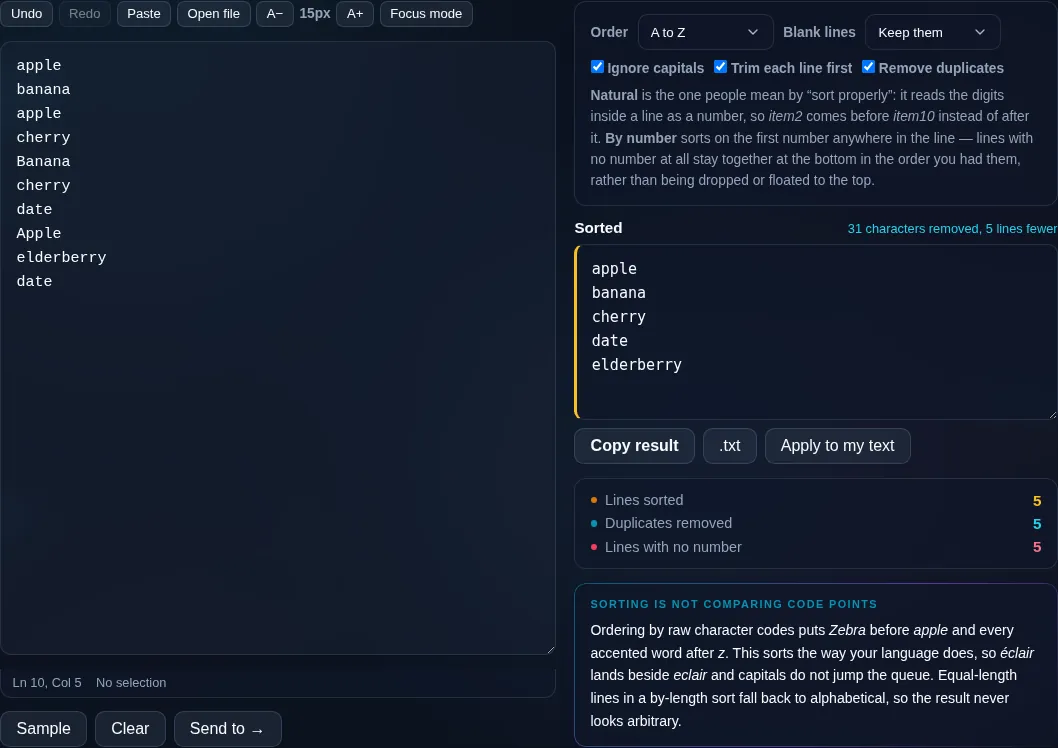
Sort Text Lines ordering a list in the browser.
Sorted list
A list sorted alphabetically with options shown.
Sort modes
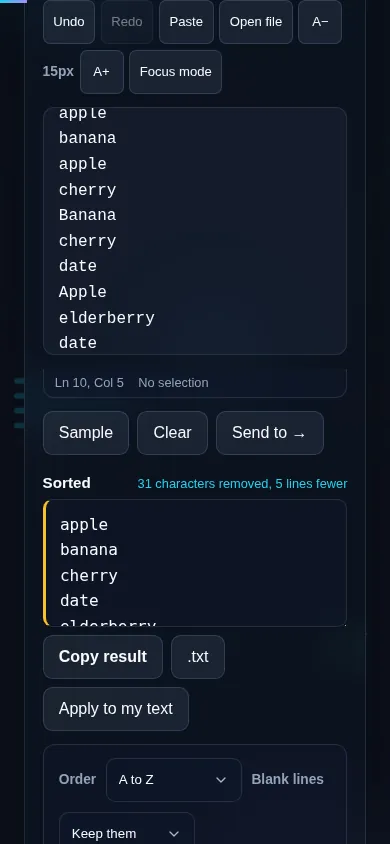
Sorting text lines on a phone, no app installed.
Mobile (stacked)

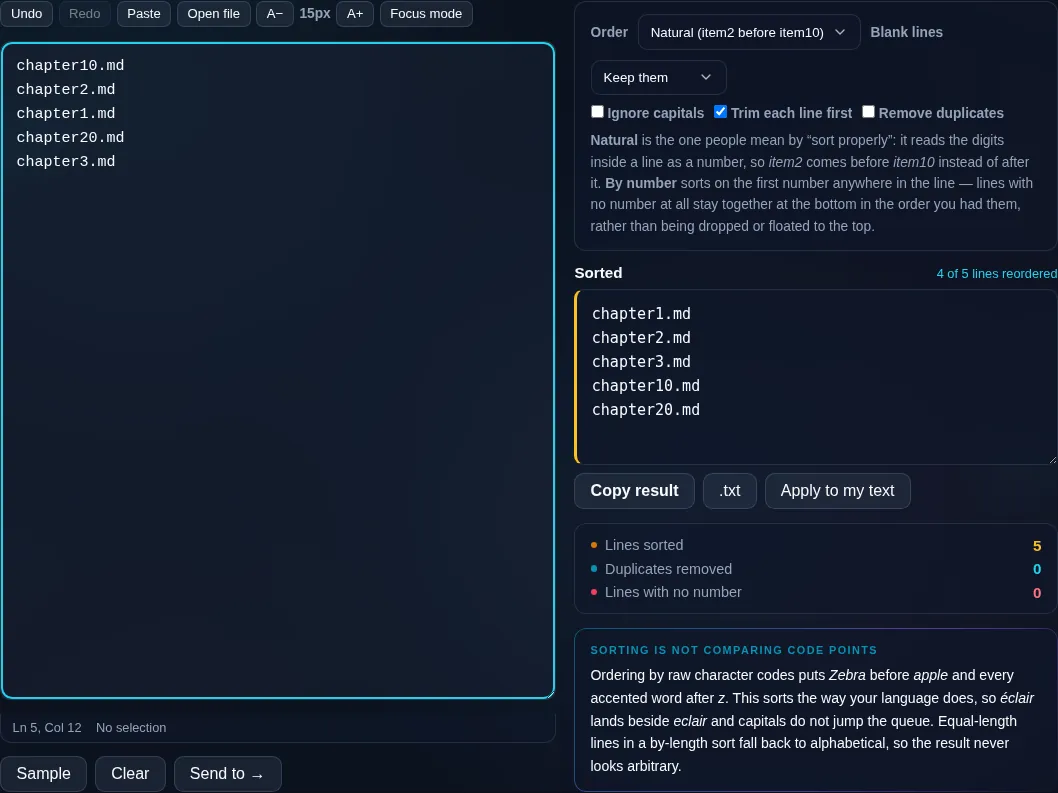
Sort modes and natural ordering

Alphabetical sorting (A–Z or Z–A) is the default and works for names, words, and most lists; a case-insensitive option keeps 'apple' and 'Apple' together rather than putting all capitals first. Numeric sorting orders lines by their value, so 2 comes before 10 (plain alphabetical would wrongly put '10' before '2'), and a natural-sort option handles lines that mix text and numbers like 'file2' and 'file10' the way a human expects. You can also sort by line length, reverse the current order, or shuffle randomly. Trimming whitespace before sorting prevents stray spaces from throwing off the order, and an integrated remove-duplicates option cleans the list at the same time. Everything runs locally in your browser, so even large lists sort instantly and nothing is uploaded. To dedupe separately use Remove Duplicate Lines; to just flip order, Reverse Line Order.

Frequently Asked Questions

How do I sort a list alphabetically?

Paste your list with one item per line, choose A–Z (or Z–A for reverse), and sort. The lines are reordered alphabetically instantly, and you can copy or download the result. Turn on case-insensitive sorting so capitalized and lowercase versions group together naturally.

Can it sort numbers correctly?

Yes — use numeric sort. Plain alphabetical sorting treats '10' as coming before '2' because it compares character by character. Numeric sort orders lines by their actual value, so 2, 10, 100 come out in the right order. There's also a natural sort for lines mixing text and numbers.

What is natural sort?

Natural sort orders lines containing numbers the way people expect: 'file2' before 'file10', not after it. Regular alphabetical sorting would put 'file10' first because '1' precedes '2'. Natural sort recognizes the numeric parts and compares them by value, which is ideal for filenames and versioned items.

Can I sort by line length?

Yes. The by-length mode orders lines from shortest to longest (or the reverse), which is handy for finding outliers, organizing snippets, or arranging items for visual balance. It's one of several modes alongside alphabetical, numeric, and random.

Can it remove duplicates while sorting?

Yes. An option removes duplicate lines as part of the sort, so you get an ordered, unique list in one step. If you want only deduplication without sorting, the Remove Duplicate Lines tool does that while preserving the original order.

Does it ignore leading spaces and case?

If you enable those options. Trimming before sorting ignores leading and trailing whitespace so stray spaces don't misplace a line, and case-insensitive sorting groups different capitalizations together. Both make the ordering match what you'd intuitively expect from a clean list.

Is my text private — is anything uploaded?

No. Everything runs in your browser, so whatever you type or paste is processed on your own device and never uploaded to a server. Nothing is stored once you close the tab. That keeps your text — notes, code, documents, lists — completely private.

Is it free, and do I need to sign up?

Yes, it's completely free with no account, no trial, and no limit on how many times you use it. Because it runs entirely in your browser, there are no server costs, no usage caps, and no watermark or branding added to your text.

Does it work on a phone?

Yes. It runs in your phone's browser with nothing to install, so you can use it on Android or iOS. The layout adapts to small screens, so you can paste text, get the result, and copy it on the go just as easily as on a computer.

Does it work offline?

Once the page has loaded, it runs entirely on your device, so it keeps working without a connection — which is also why nothing is uploaded. You only need to be online to open the page the first time; after that the tool works locally.

Can I copy or download the result?

Yes. You can copy the result to your clipboard with one click, and longer output can be downloaded as a text file. Everything is processed locally, so copying and downloading are instant with no upload step and no waiting.

Is there a limit on how much text I can process?

There's no artificial cap, because the work happens on your device rather than a server. The practical limit is your device's memory, so very large inputs are smoother on a computer than an older phone. For most everyday text, processing is effectively instant.

Still have questions?

If you can't find the answer you're looking for, feel free to contact our support team.

Contact Us