Add Line Numbers

Add sequential line numbers to each line of text, with a custom start, separator, and zero-padding.

100% Browser-Based Local Processing
15px

Ln 1, Col 1 No selection

Padding only shows itself once the list passes line 9 — it widens every number to match the largest one, so 09 sits under 10 instead of stepping left. Skipping blank lines leaves them empty rather than numbering them, which is what you want for a list with sections in it.

Numbered Nothing to reorder yet
Lines numbered
0
Last number
Characters added
0

These are real characters at the start of each line, not an editor’s gutter — copy the result and the numbering travels with it into an email, a ticket or a document. Nothing here detects numbering that is already there, so running it twice numbers the numbers.

Privacy Focused

🔒 Local Processing. Your text never leaves your device.

Instant Results

🌐 Fully Client-Side. Runs instantly in your browser.

No Signup

⚡ No accounts. No API keys. Just open and use.

Browser Based

🚀 No installs, no sign-ups, no character limits.

What is a Add Line Numbers?

Add Line Numbers puts a sequential number in front of every line of your text. Choose the starting number, the separator after the number, and zero-padding for alignment. Paste your text and number it in one click. It runs entirely in your browser, so your text stays private, and you can copy or download the result.

Numbering lines makes text referenceable — for code listings, scripts, instructions, or any list where you want to point to 'line 14'. Typing the numbers by hand is slow and breaks the moment you add a line.

This tool numbers every line automatically, with control over the start, separator, and padding, all in your browser. Nothing is uploaded. Paste, number, and copy.
How to add line numbers

Step 1: Paste or type your text into the box

Paste or type your text into the box.

Step 2: Set the starting number and separator, and turn on zero-padding if you want aligned numbers

Set the starting number and separator, and turn on zero-padding if you want aligned numbers.

Step 3: Apply, then copy or download the numbered text

Apply, then copy or download the numbered text.

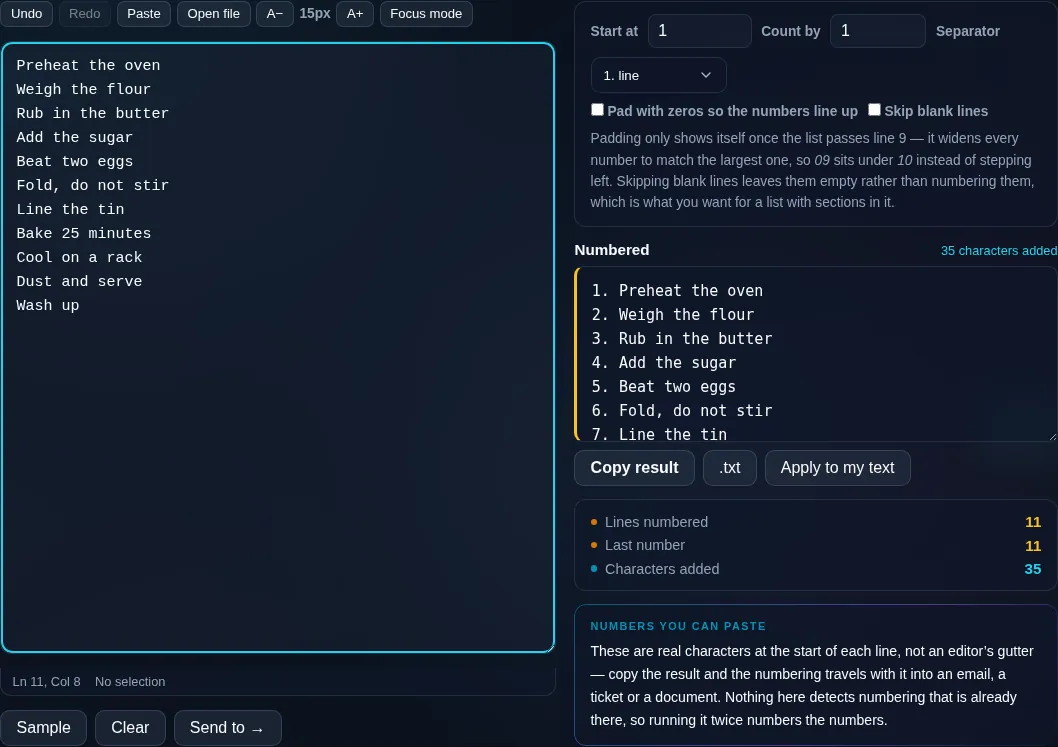
Add Line Numbers in action

Add Line Numbers numbering each line in the browser.
Numbered lines
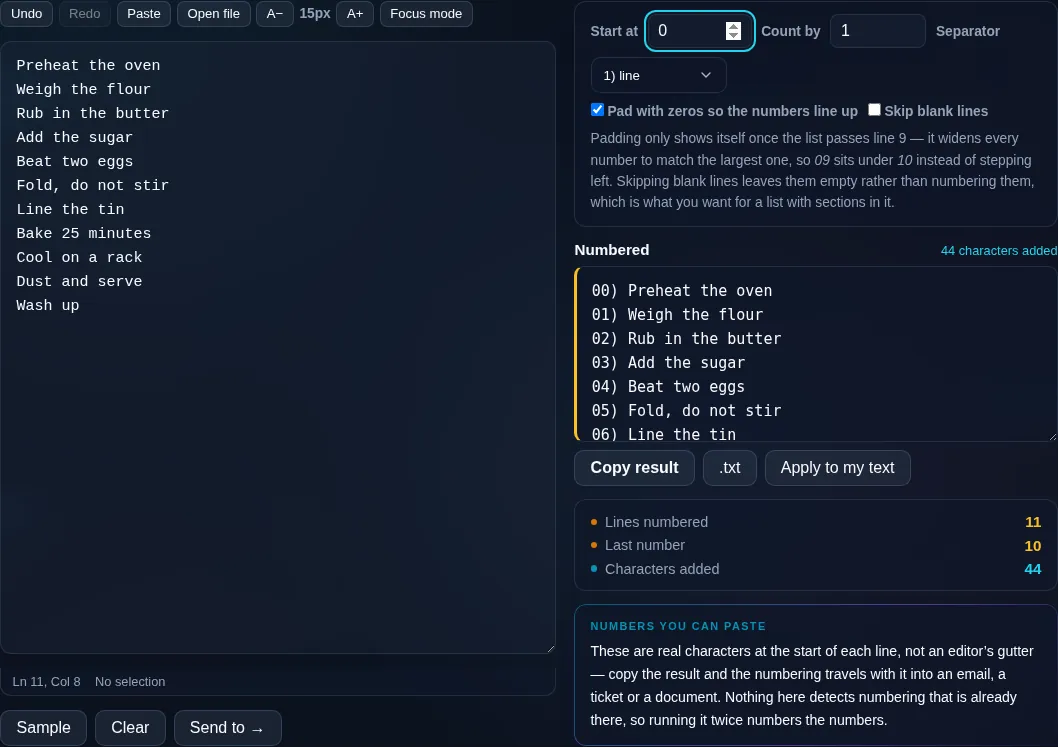
Lines numbered with zero-padding and a separator.
Padding + separator
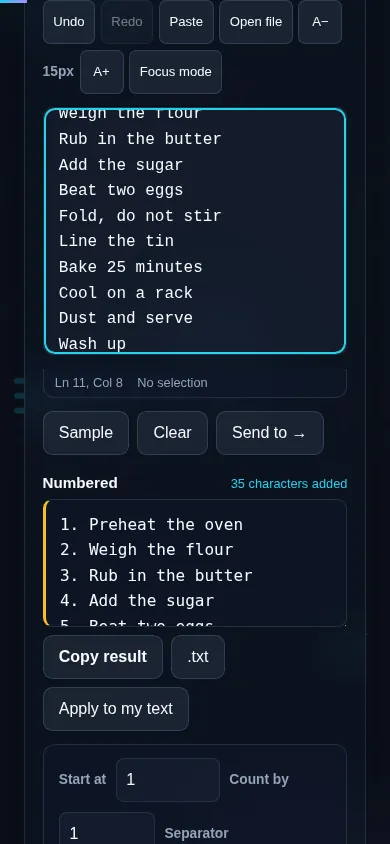
Adding line numbers on a phone, no app installed.
Mobile (stacked)

Numbering options that matter

The basics are a number plus a separator before each line, but the options make it usable. You can set the starting number (begin at 1, 0, or any value) and the increment, choose the separator that follows the number (a period, parenthesis, colon, or tab), and turn on zero-padding so '1' becomes '001' — which keeps the numbers and the text neatly aligned in long lists. A skip-empty-lines option lets you decide whether blank lines get a number or are left blank. This differs from the prefix tool because the number increments automatically down the list rather than being the same on every line. Everything runs locally in your browser, so even long files number instantly and nothing is uploaded. To add the same fixed text to each line instead, use Add Prefix & Suffix to Lines.

Frequently Asked Questions

How do I number each line of text?

Paste your text, choose a separator, and apply — each line gets a sequential number in front of it, starting from 1 by default. The numbers increment automatically, so adding or removing lines and re-running keeps them correct. Then copy or download the result.

Can I start the numbering at a specific value?

Yes. You can set any starting number — 1, 0, or, say, 100 — and choose the increment between lines. This is useful when you're continuing a numbered list from elsewhere or matching an existing reference scheme.

What separator goes between the number and the line?

You choose: a period ('1. text'), a parenthesis ('1) text'), a colon ('1: text'), a tab, or a custom separator. Picking the right separator makes the output match the style of a code listing, an outline, or a reference document.

What is zero-padding and why use it?

Zero-padding adds leading zeros so all numbers have the same width — '001', '002', … '050'. It keeps the numbers and the text aligned in a column, which looks tidy and is easier to scan in long lists. The tool pads based on how many lines there are.

Does it number blank lines?

That's up to you. A skip-empty-lines option lets you leave blank lines unnumbered (so the count reflects only content lines) or number every line including blanks. Choose based on whether the blanks are meaningful parts of your list.

How is this different from adding a prefix?

Add Line Numbers inserts an automatically incrementing number on each line. Add Prefix & Suffix to Lines adds the same fixed text to every line. Use this when you need a running count; use the prefix tool when every line should get identical text like a quote or tag.

Is my text private — is anything uploaded?

No. Everything runs in your browser, so whatever you type or paste is processed on your own device and never uploaded to a server. Nothing is stored once you close the tab. That keeps your text — notes, code, documents, lists — completely private.

Is it free, and do I need to sign up?

Yes, it's completely free with no account, no trial, and no limit on how many times you use it. Because it runs entirely in your browser, there are no server costs, no usage caps, and no watermark or branding added to your text.

Does it work on a phone?

Yes. It runs in your phone's browser with nothing to install, so you can use it on Android or iOS. The layout adapts to small screens, so you can paste text, get the result, and copy it on the go just as easily as on a computer.

Does it work offline?

Once the page has loaded, it runs entirely on your device, so it keeps working without a connection — which is also why nothing is uploaded. You only need to be online to open the page the first time; after that the tool works locally.

Can I copy or download the result?

Yes. You can copy the result to your clipboard with one click, and longer output can be downloaded as a text file. Everything is processed locally, so copying and downloading are instant with no upload step and no waiting.

Is there a limit on how much text I can process?

There's no artificial cap, because the work happens on your device rather than a server. The practical limit is your device's memory, so very large inputs are smoother on a computer than an older phone. For most everyday text, processing is effectively instant.

Still have questions?

If you can't find the answer you're looking for, feel free to contact our support team.

Contact Us