Text Diff Checker

Compare two pieces of text and highlight the differences — added, removed, and changed — at line and word level.

100% Browser-Based Local Processing
15px

Ln 1, Col 1 No selection

Line endings are never a difference — a file saved on Windows and the same file saved on a Mac compare as identical. Turn on ignore whitespace when a line looks the same but reads as changed; that is almost always a trailing space or a tab.

Differences Nothing to compare yet

Paste something into both panes to see what changed.

Lines added
0
Lines removed
0
Lines changed
0

A diff walks both texts in order, so a moved paragraph reads as one deletion and one insertion rather than as a move — the right answer for two versions of one document. If your inputs are lists of separate items and order is irrelevant, use Compare Two Lists; for source code, the Code Diff Checker.

Privacy Focused

🔒 Local Processing. Your text never leaves your device.

Instant Results

🌐 Fully Client-Side. Runs instantly in your browser.

No Signup

⚡ No accounts. No API keys. Just open and use.

Browser Based

🚀 No installs, no sign-ups, no character limits.

What is a Text Diff Checker?

Text Diff Checker compares two pieces of text and highlights exactly what changed — additions, deletions, and edits — at both line and word level. Paste an original and a revised version to see the differences side by side. It runs entirely in your browser, so your text stays private, and you can ignore case or whitespace.

Spotting what changed between two versions of a document, email, or paragraph by eye is slow and unreliable. A diff checker highlights every addition, deletion, and edit instantly.

This tool compares two texts at word and line level, all in your browser. Nothing is uploaded. Paste both versions and see the differences.
How to compare two texts

Step 1: Paste the original text on one side and the changed text on the other

Paste the original text on one side and the changed text on the other.

Step 2: Set options like ignore case or ignore whitespace if needed

Set options like ignore case or ignore whitespace if needed.

Step 3: View the highlighted differences and the change count; copy the result

View the highlighted differences and the change count; copy the result.

Text Diff Checker in action

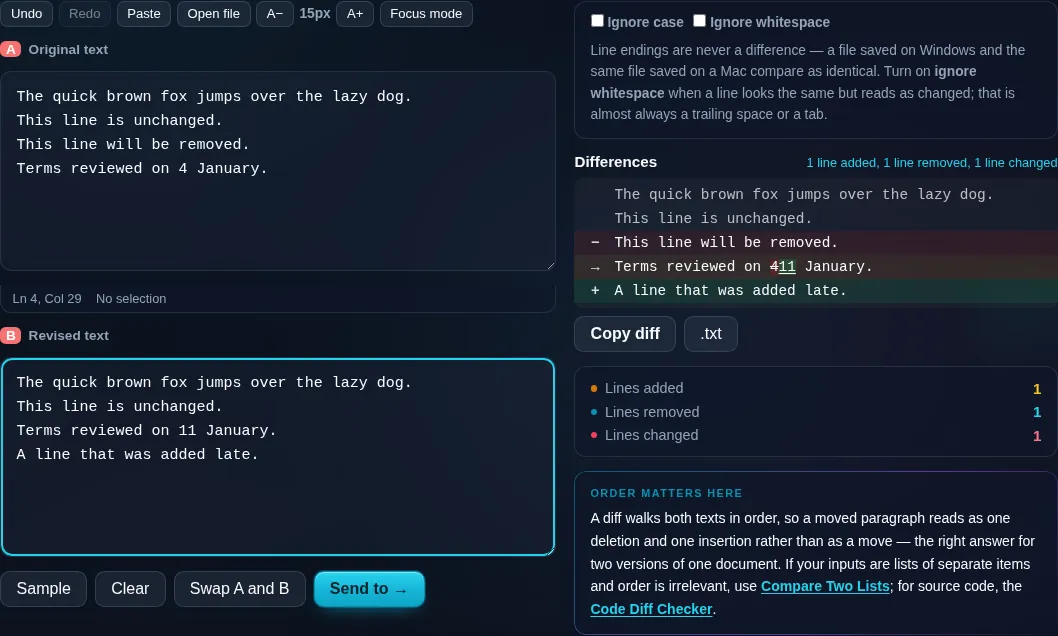
Text Diff Checker comparing two texts in the browser.
Side-by-side diff
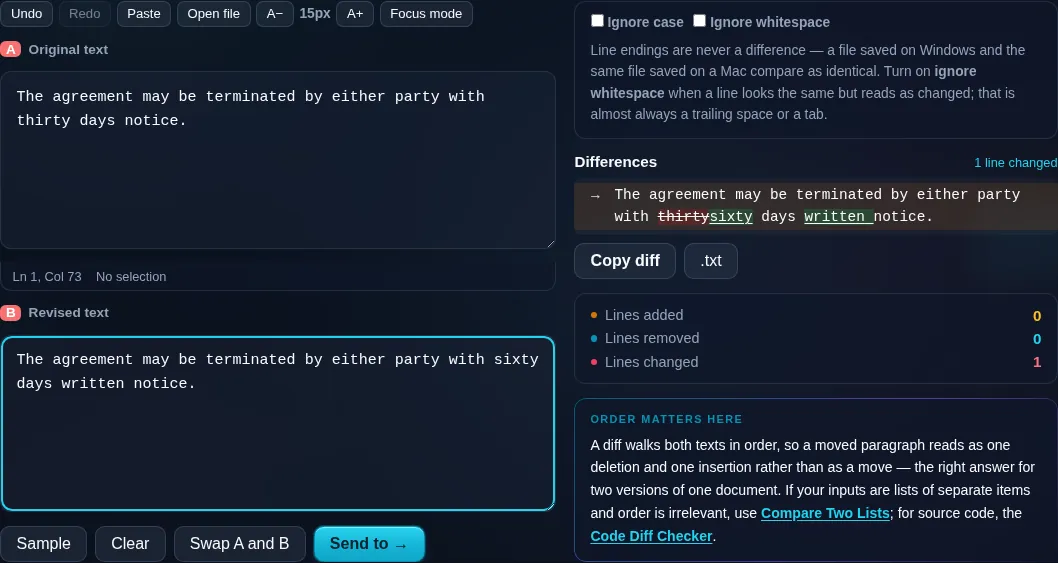
Two texts compared with added and removed words highlighted.
Word-level highlight
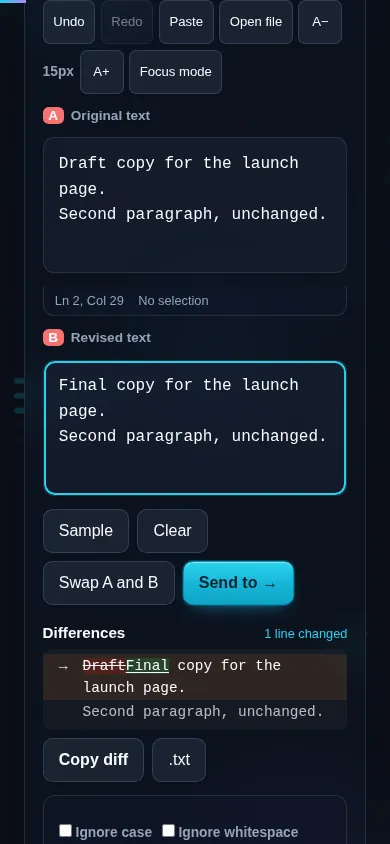
Comparing two texts on a phone, no app installed.
Mobile (stacked)

Line-level and word-level diffs

The checker aligns the two texts and marks what's different: removed content from the original, added content in the new version, and lines that changed. It works at line level (showing which lines differ) and word level (highlighting the exact words added or deleted within a changed line), so you see not just that a line changed but precisely how. Options to ignore case and ignore whitespace let you focus on meaningful differences and skip cosmetic ones — useful when comparing reformatted text. It reports a count of changes so you can gauge how much differs. This is tuned for prose and general text — documents, emails, contracts, content drafts; for comparing source code with syntax-aware handling, the developer Code Diff Checker is linked here. Large inputs take longer since the comparison runs in your browser, where everything stays private and nothing is uploaded.

Frequently Asked Questions

How do I compare two pieces of text?

Paste the original into one box and the changed version into the other. The tool highlights the differences — what was added, removed, or edited — and shows a count of the changes. You can read them side by side or inline, then copy the result.

Does it show word-level changes or just whole lines?

Both. It shows which lines differ and, within a changed line, highlights the exact words that were added or deleted. That word-level detail means you can see a small edit inside a long line, not just that the line changed somehow.

Can it ignore formatting differences like spacing or case?

Yes. Options to ignore whitespace and ignore case let you skip cosmetic differences — extra spaces, indentation, capitalization — so the diff focuses on meaningful content changes. Turn them off when those details matter for your comparison.

Is it good for comparing documents or contracts?

Yes. It's well suited to prose — comparing two drafts of a document, an email, a policy, or a contract clause — because the word-level highlighting makes wording changes obvious. Just remember it compares text you paste; it doesn't open file formats like Word directly.

How is this different from the code diff checker?

This tool is tuned for general text and prose. The developer Code Diff Checker handles source code with awareness of code structure. Both highlight differences, but use this for documents and writing, and the Code Diff Checker (linked here) for comparing code.

Is my text private when comparing?

Yes. Both versions are compared entirely in your browser, so neither is uploaded and nothing is stored. That matters when you're diffing confidential drafts, contracts, or personal documents — the comparison stays on your own device.

Is my text private — is anything uploaded?

No. Everything runs in your browser, so whatever you type or paste is processed on your own device and never uploaded to a server. Nothing is stored once you close the tab. That keeps your text — notes, code, documents, lists — completely private.

Is it free, and do I need to sign up?

Yes, it's completely free with no account, no trial, and no limit on how many times you use it. Because it runs entirely in your browser, there are no server costs, no usage caps, and no watermark or branding added to your text.

Does it work on a phone?

Yes. It runs in your phone's browser with nothing to install, so you can use it on Android or iOS. The layout adapts to small screens, so you can paste text, get the result, and copy it on the go just as easily as on a computer.

Does it work offline?

Once the page has loaded, it runs entirely on your device, so it keeps working without a connection — which is also why nothing is uploaded. You only need to be online to open the page the first time; after that the tool works locally.

Can I copy or download the result?

Yes. You can copy the result to your clipboard with one click, and longer output can be downloaded as a text file. Everything is processed locally, so copying and downloading are instant with no upload step and no waiting.

Is there a limit on how much text I can process?

There's no artificial cap, because the work happens on your device rather than a server. The practical limit is your device's memory, so very large inputs are smoother on a computer than an older phone. For most everyday text, processing is effectively instant.

Still have questions?

If you can't find the answer you're looking for, feel free to contact our support team.

Contact Us