Compare Two Lists

Compare two lists to find items in both, only in one, or combined — with counts you can copy.

100% Browser-Based Local Processing
15px

Ln 1, Col 1 No selection

No duplicates inside either list

Results Nothing to compare yet

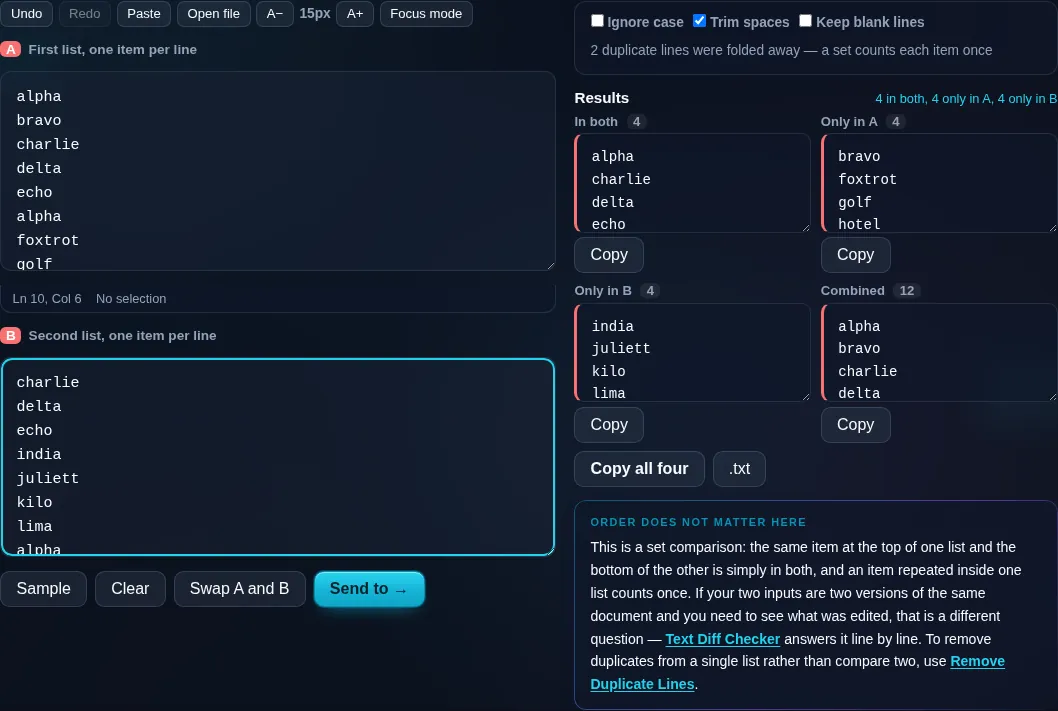
This is a set comparison: the same item at the top of one list and the bottom of the other is simply in both, and an item repeated inside one list counts once. If your two inputs are two versions of the same document and you need to see what was edited, that is a different question — Text Diff Checker answers it line by line. To remove duplicates from a single list rather than compare two, use Remove Duplicate Lines.

Privacy Focused

🔒 Local Processing. Your text never leaves your device.

Instant Results

🌐 Fully Client-Side. Runs instantly in your browser.

No Signup

⚡ No accounts. No API keys. Just open and use.

Browser Based

🚀 No installs, no sign-ups, no character limits.

What is a Compare Two Lists?

Compare Two Lists takes two lists and shows the items that appear in both, the items only in the first, the items only in the second, and the combined unique set — each with a count. Paste your two lists and compare in one click. It runs entirely in your browser, so your lists stay private.

Comparing two lists — which emails are on both, which names are new this month, what's missing from one — is a common data task that's tedious by hand and overkill for a spreadsheet.

This tool does the set comparison instantly: in both, only A, only B, and combined, all in your browser. Nothing is uploaded. Paste your lists and compare.

How to compare two lists

Step 1: Paste the first list (one item per line) on one side and the second on the other

Paste the first list (one item per line) on one side and the second on the other.

Step 2: Set case-insensitive and trim options if needed

Set case-insensitive and trim options if needed.

Step 3: Read the results — in both, only in A, only in B, combined — with counts, and copy any of them

Read the results — in both, only in A, only in B, combined — with counts, and copy any of them.

Compare Two Lists in action

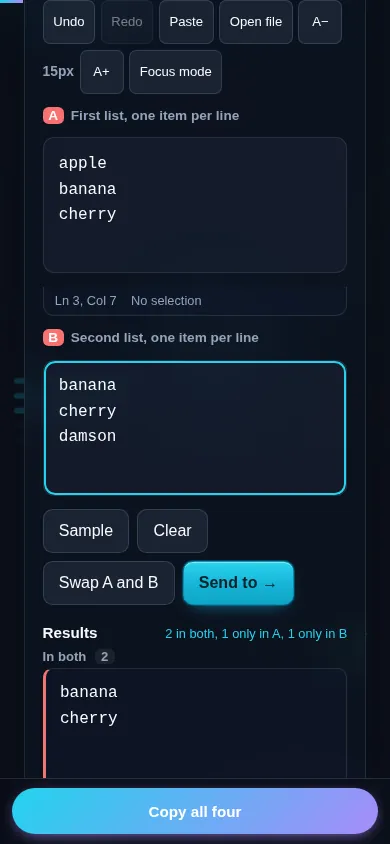
Compare Two Lists finding common and unique items in the browser.
Comparison results
Two lists compared showing in-both and only-in-one results.
Counts
Comparing two lists on a phone, no app installed.
Mobile (stacked)

Set operations on your lists

Treating each line as an item, the tool computes the classic set comparisons: the intersection (items present in both lists), the items unique to the first list, the items unique to the second, and the union (every item across both, with duplicates removed). Each result comes with a count and can be copied separately, so you can immediately grab, say, just the new names or just the overlap. Case-insensitive and trim-before-comparing options handle the near-matches that come from inconsistent capitalization or stray spaces, and duplicates within a single list are collapsed so they don't distort the comparison. This differs from a text diff, which compares two texts in sequence line by line; here the order doesn't matter — it's about membership. Everything runs locally in your browser, so even large lists compare instantly and nothing is uploaded. To dedupe a single list, use Remove Duplicate Lines; to diff prose, the Text Diff Checker.

Frequently Asked Questions

How do I find items that are in both lists?

Paste your two lists, one item per line each, and the tool shows the items common to both (the intersection) along with a count. You can copy that result directly. It also shows what's unique to each list, so you get the full picture in one step.

Can it show what's only in one list?

Yes. As well as the items in both, it lists the items found only in the first list and only in the second. That's exactly what you need to spot new additions, missing entries, or what one list has that the other doesn't.

What does the combined result give me?

The combined (union) result is every distinct item across both lists, with duplicates removed — effectively a merged, deduplicated master list. It's handy when you want to unify two sources into one clean list without repeating shared items.

Does it ignore case and extra spaces?

If you enable those options. Case-insensitive matching treats 'Email@x.com' and 'email@x.com' as the same, and trimming ignores stray leading or trailing spaces. Both prevent near-identical items from being wrongly counted as different between the lists.

How is this different from the text diff checker?

Compare Two Lists treats your lines as a set and checks membership — what's shared or unique — regardless of order. The Text Diff Checker compares two texts in sequence to show edits. Use this for list overlaps; use the diff checker for tracking changes in prose.

What are common uses for comparing lists?

Finding overlapping emails or customers between two exports, spotting new or removed entries month to month, reconciling two data sources, checking which items from a master list are missing, and merging lists without duplicates. It's a quick alternative to spreadsheet formulas.

Is my text private — is anything uploaded?

No. Everything runs in your browser, so whatever you type or paste is processed on your own device and never uploaded to a server. Nothing is stored once you close the tab. That keeps your text — notes, code, documents, lists — completely private.

Is it free, and do I need to sign up?

Yes, it's completely free with no account, no trial, and no limit on how many times you use it. Because it runs entirely in your browser, there are no server costs, no usage caps, and no watermark or branding added to your text.

Does it work on a phone?

Yes. It runs in your phone's browser with nothing to install, so you can use it on Android or iOS. The layout adapts to small screens, so you can paste text, get the result, and copy it on the go just as easily as on a computer.

Does it work offline?

Once the page has loaded, it runs entirely on your device, so it keeps working without a connection — which is also why nothing is uploaded. You only need to be online to open the page the first time; after that the tool works locally.

Can I copy or download the result?

Yes. You can copy the result to your clipboard with one click, and longer output can be downloaded as a text file. Everything is processed locally, so copying and downloading are instant with no upload step and no waiting.

Is there a limit on how much text I can process?

There's no artificial cap, because the work happens on your device rather than a server. The practical limit is your device's memory, so very large inputs are smoother on a computer than an older phone. For most everyday text, processing is effectively instant.

Still have questions?

If you can't find the answer you're looking for, feel free to contact our support team.

Contact Us