Remove HTML Tags

Strip HTML tags to get clean plain text, with entity decoding and an option to keep line breaks.

100% Browser-Based Local Processing
15px

Ln 1, Col 1 No selection

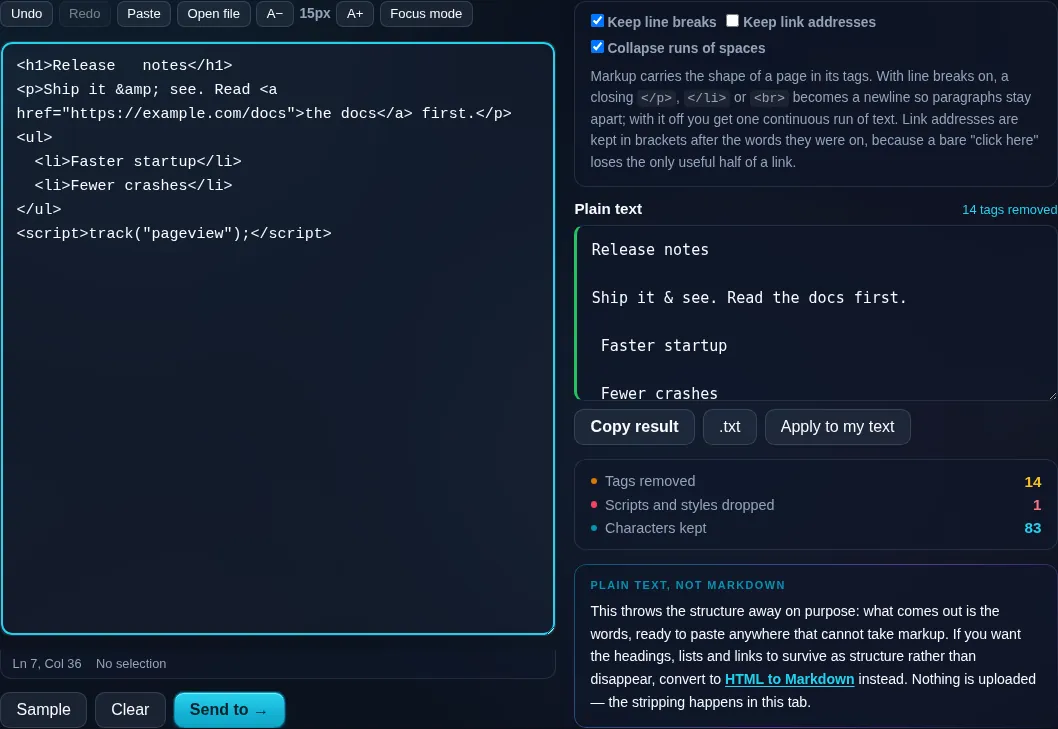
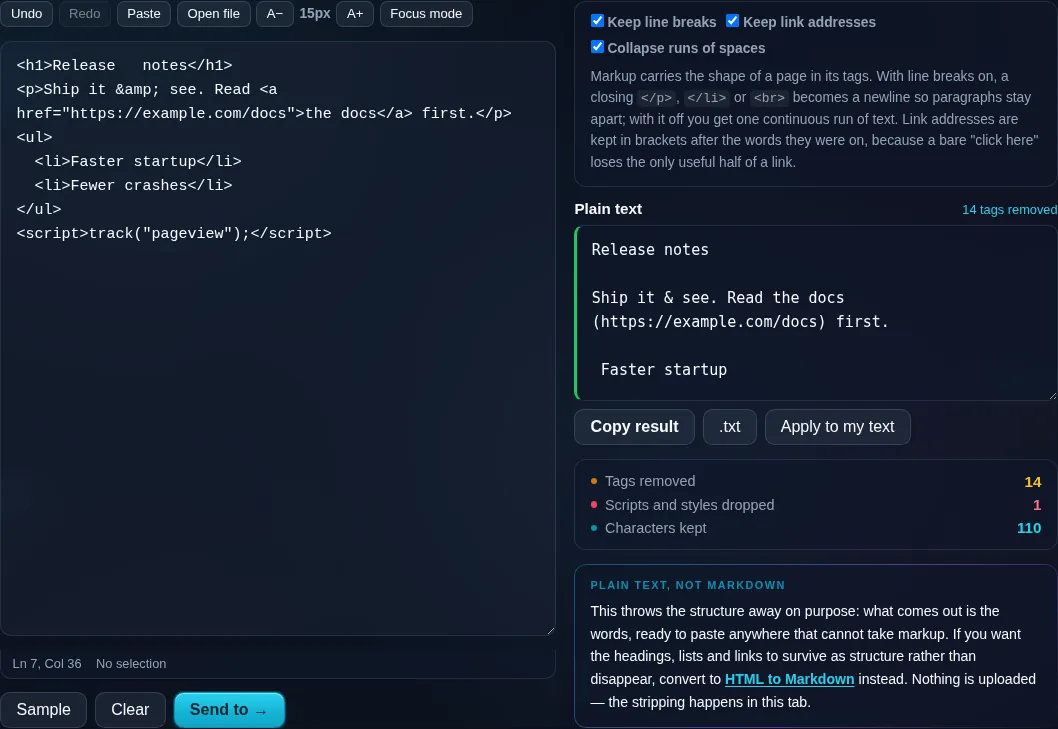
Markup carries the shape of a page in its tags. With line breaks on, a closing </p>, </li> or <br> becomes a newline so paragraphs stay apart; with it off you get one continuous run of text. Link addresses are kept in brackets after the words they were on, because a bare "click here" loses the only useful half of a link.

Plain text Nothing to strip yet
Tags removed
0
Scripts and styles dropped
0
Characters kept
0

This throws the structure away on purpose: what comes out is the words, ready to paste anywhere that cannot take markup. If you want the headings, lists and links to survive as structure rather than disappear, convert to HTML to Markdown instead. Nothing is uploaded — the stripping happens in this tab.

Privacy Focused

🔒 Local Processing. Your text never leaves your device.

Instant Results

🌐 Fully Client-Side. Runs instantly in your browser.

No Signup

⚡ No accounts. No API keys. Just open and use.

Browser Based

🚀 No installs, no sign-ups, no character limits.

What is a Remove HTML Tags?

Remove HTML Tags strips all the HTML markup from your text to leave clean plain text. It removes tags, deletes script and style content, and decodes HTML entities like &amp; back to normal characters. Paste HTML and get readable text in one click. It runs entirely in your browser, so your content stays private.

HTML copied from a web page or email brings tags, entities, and hidden script along with the words. When you just want the text — to paste into a document, analyze it, or reuse the copy — you need it stripped clean.

This tool removes the markup and tidies the result in one click, entirely in your browser. Nothing is uploaded. Paste, strip, and copy.
How to remove HTML tags

Step 1: Paste your HTML or markup into the box

Paste your HTML or markup into the box.

Step 2: Choose whether to keep line breaks for block elements and whether to keep link URLs

Choose whether to keep line breaks for block elements and whether to keep link URLs.

Step 3: Strip the tags, then copy or download the plain text

Strip the tags, then copy or download the plain text.

Remove HTML Tags in action

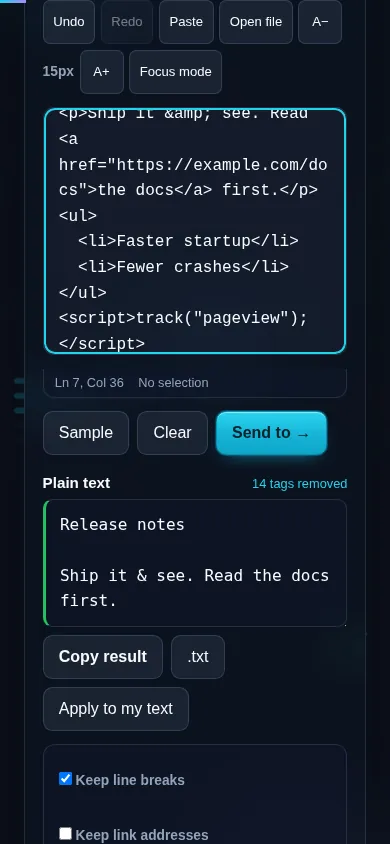
Remove HTML Tags stripping markup in the browser.
Plain text result
Link addresses kept in brackets after the words they were on.
Keep-breaks option
Removing HTML tags on a phone, no app installed.
Mobile (stacked)

From markup to clean text

The tool removes every HTML tag and discards the contents of <script> and <style> blocks (which are code, not readable text), then decodes HTML entities so '&amp;', '&lt;', and '&nbsp;' become the characters they represent. Two options control structure: 'keep line breaks' turns block-level elements like <p>, <br>, and <li> into newlines so the text keeps its paragraphing instead of collapsing into one run, and 'keep link URLs' appends each link's address so you don't lose where it pointed. Leftover double spaces from removed tags can be collapsed for a tidy result. This produces plain text — if you instead want to preserve structure as Markdown, the developer HTML to Markdown tool does that and is linked here. Everything runs locally in your browser, so nothing is uploaded.

Frequently Asked Questions

How do I strip HTML tags from text?

Paste your HTML and click to remove tags — all the markup is taken out, leaving just the readable text. Script and style code are discarded and HTML entities are decoded, so you get clean plain text you can copy or download immediately.

Does it decode HTML entities like &amp;?

Yes. Entities such as '&amp;', '&lt;', '&gt;', and '&nbsp;' are converted back to the characters they represent ('&', '<', '>', and a space). Without decoding you'd be left with stray codes, so this step is what makes the output truly readable.

Will it keep my paragraphs and line breaks?

If you enable the keep-line-breaks option, block elements like <p>, <br>, and list items become newlines, so the text keeps its paragraph structure. With it off, the result is collapsed into continuous text. Choose based on whether layout matters to you.

What happens to script and style code?

The contents of <script> and <style> tags are removed entirely, not just their tags. That code isn't readable text and would otherwise clutter the output, so stripping it leaves only the actual content of the page or email.

Can I keep the link addresses?

Yes. By default link text is kept but the URL is dropped; turning on the keep-link-URLs option appends each link's address so you don't lose where it pointed. That's useful when the destinations matter, for example when extracting references.

How is this different from HTML to Markdown?

This tool produces plain text with the markup removed. HTML to Markdown (in the developer tools) preserves structure — headings, lists, links, bold — by converting tags into Markdown syntax. Use this when you want bare text; use HTML to Markdown when you want to keep formatting.

Is my text private — is anything uploaded?

No. Everything runs in your browser, so whatever you type or paste is processed on your own device and never uploaded to a server. Nothing is stored once you close the tab. That keeps your text — notes, code, documents, lists — completely private.

Is it free, and do I need to sign up?

Yes, it's completely free with no account, no trial, and no limit on how many times you use it. Because it runs entirely in your browser, there are no server costs, no usage caps, and no watermark or branding added to your text.

Does it work on a phone?

Yes. It runs in your phone's browser with nothing to install, so you can use it on Android or iOS. The layout adapts to small screens, so you can paste text, get the result, and copy it on the go just as easily as on a computer.

Does it work offline?

Once the page has loaded, it runs entirely on your device, so it keeps working without a connection — which is also why nothing is uploaded. You only need to be online to open the page the first time; after that the tool works locally.

Can I copy or download the result?

Yes. You can copy the result to your clipboard with one click, and longer output can be downloaded as a text file. Everything is processed locally, so copying and downloading are instant with no upload step and no waiting.

Is there a limit on how much text I can process?

There's no artificial cap, because the work happens on your device rather than a server. The practical limit is your device's memory, so very large inputs are smoother on a computer than an older phone. For most everyday text, processing is effectively instant.

Still have questions?

If you can't find the answer you're looking for, feel free to contact our support team.

Contact Us