SQL Playground

Practice SQL with real sample databases. Queries run in your browser, so nothing is ever uploaded.

100% Browser-Based Local Processing

SQL Playground

Engine idle
History
    sqlite — query
    Results
    Schema

    Are you sure?

    Schema diagram

    Privacy Focused

    🔒 Local Processing. Your data never leaves your device.

    Instant Results

    🌐 Fully Client-Side. Runs instantly in your browser.

    No Signup

    ⚡ No accounts. No hassle. Just open and use.

    Browser Based

    🚀 Works right in your browser. No installs, no downloads.

    Practice SQL in Your Browser

    The SQL Playground provides a fully functional SQLite environment directly in your browser. Run real SQL queries against sample databases entirely in your browser without uploading anything to a backend server. Your queries, results, and uploaded databases remain completely private on your local machine.

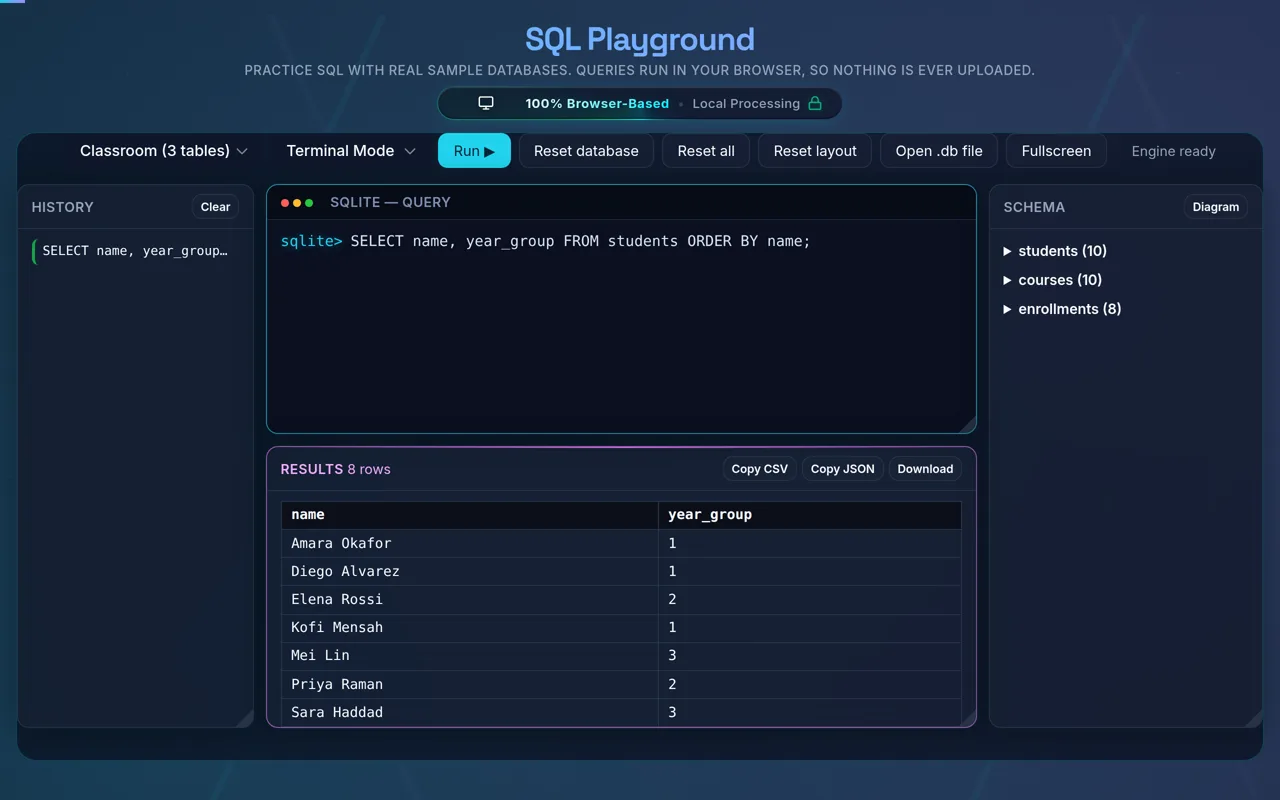
    Sleek modern SQL editor interface showing a SELECT query being typed

    This tool is ideal for developers, data analysts, and students who want to quickly test queries, analyze data sets, or practice SQL without the hassle of setting up a local database server. Simply write your SQL commands, hit run, and view the results instantly.

    It is a practice sandbox using SQLite. MySQL and PostgreSQL differ in some syntax, so check your target database's documentation before depending on a query in production.
    From First SELECT to Window Functions

    The Classroom database has three tables, students, courses and enrollments, which is enough to learn SELECT, WHERE, ORDER BY and your first JOIN without getting lost. Its columns cover text, integers, decimals, dates, booleans and NULLs.

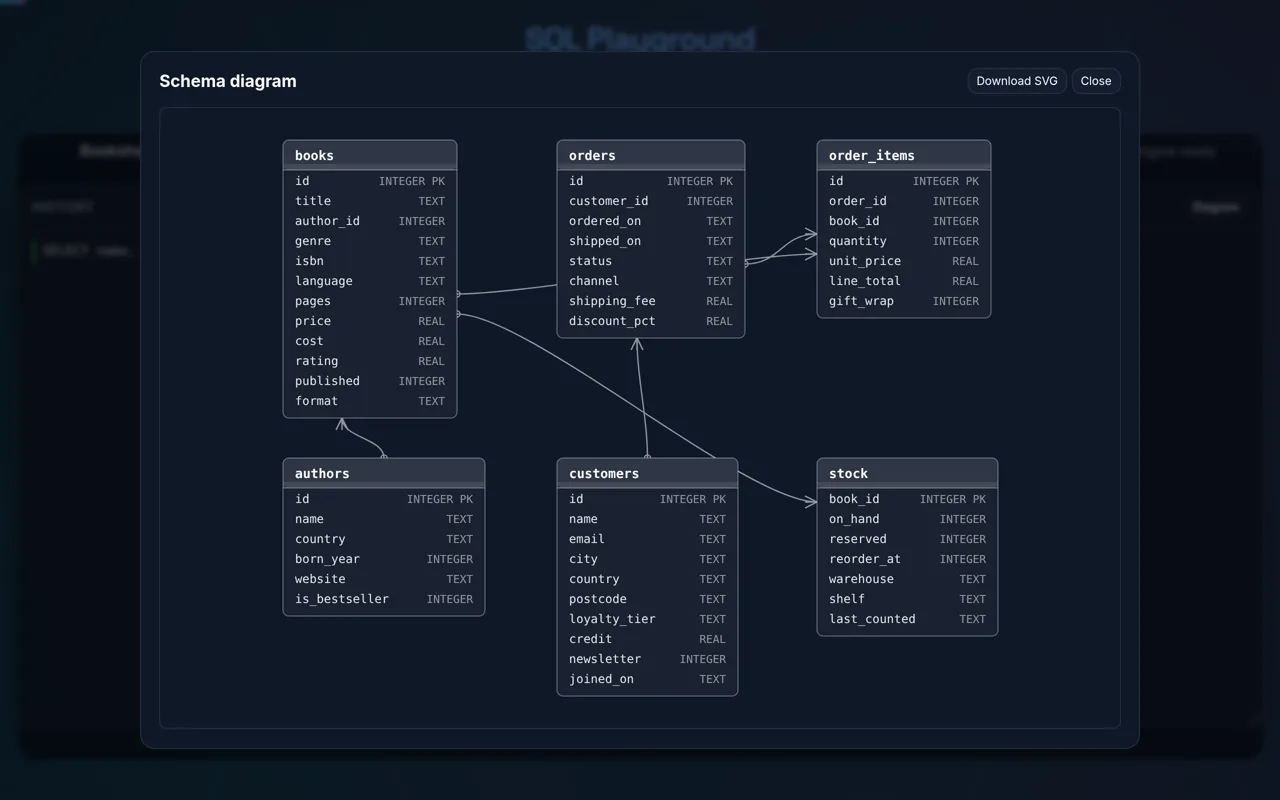
    Database schema visualizer showing table relationships and columns

    The Bookshop database adds authors, books, customers, orders, order items and stock, so you can practise multi-table joins, GROUP BY, aggregates such as SUM and COUNT, HAVING, and subqueries against data that behaves like a real shop.

    The Sensors database holds a time series of readings from six devices, with temperature, humidity, pressure, battery level and signal strength, perfect for window functions such as LAG and ROW_NUMBER.

    How to Use the SQL Playground

    Writing and Executing Queries

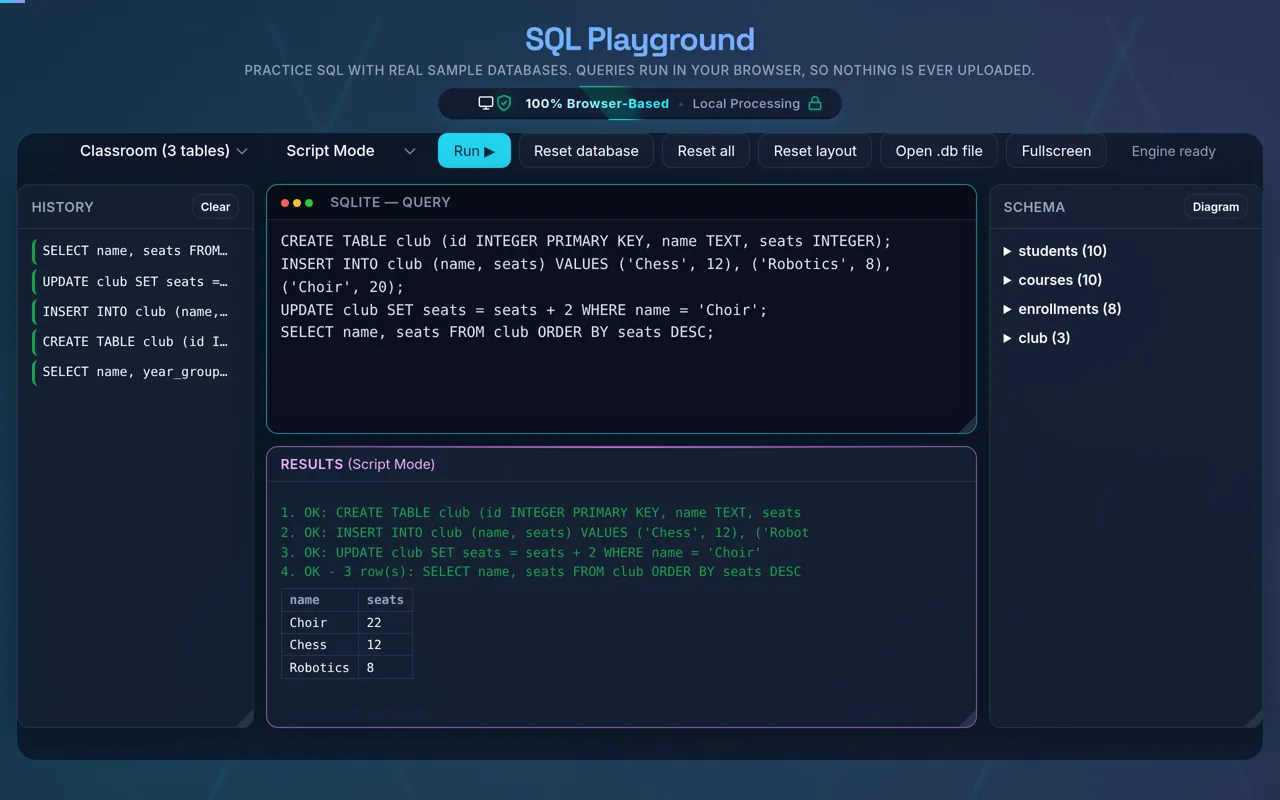
    Type your SQL in the Query Editor. In Terminal Mode, press Enter to run the statement (Shift+Enter for a new line); in Script Mode, write several statements separated by semicolons and press Ctrl+Enter, or click the "Run" button, to execute them.

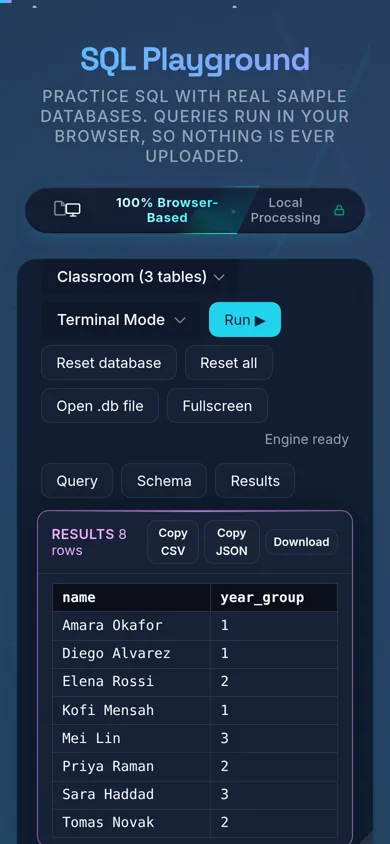
    Data table showing query results with elegant dark theme UI

    Terminal Mode always runs the full statement, and Script Mode always runs the full script — there's no way to select and run just part of the editor's contents. To run only one statement out of several, delete or comment out the others, or switch to Terminal Mode for that one query.

    Managing Databases

    You start with a default sample database. To work with your own data, use the "Open .db file" button to load an existing SQLite (.sqlite, .db) file — up to 50MB. Your uploaded databases are securely saved in your browser's IndexedDB so they persist across sessions.

    Viewing Schema and History

    The Schema panel automatically updates to show the tables, columns, and data types in your current database. The History panel keeps a log of all successfully executed queries, making it easy to rerun previous commands.

    Still have questions?

    If you can't find the answer you're looking for, feel free to contact our support team.

    Contact Us