ASCII Art Text Generator

Turn text into ASCII art banners with figlet-style fonts — perfect for READMEs, code comments, and terminals.

100% Browser-Based Local Processing
15px

Ln 1, Col 1 No selection

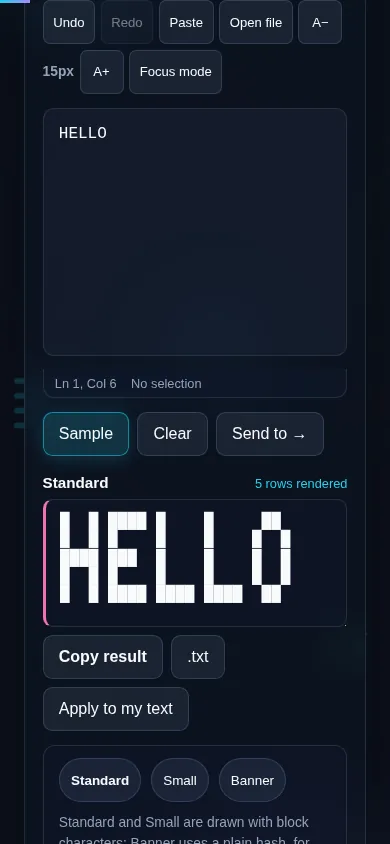
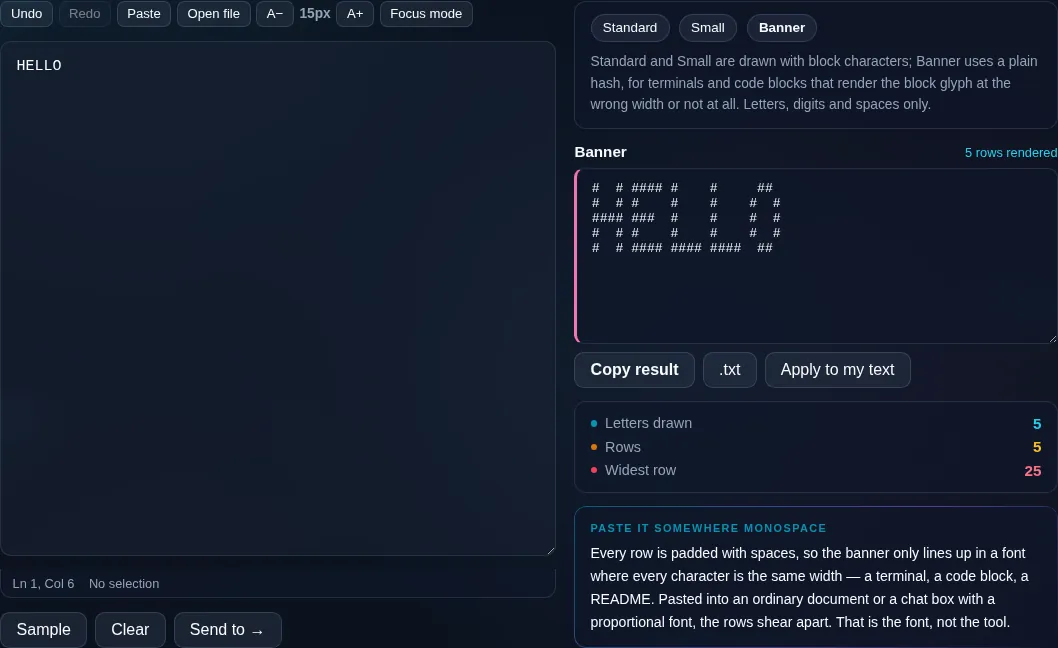
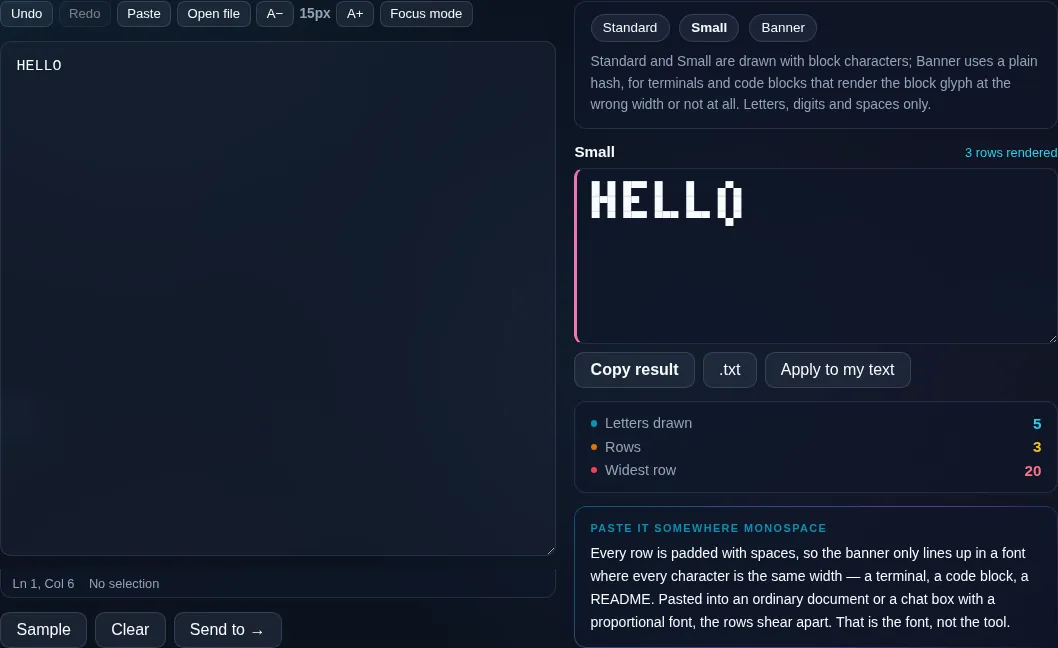
Standard and Small are drawn with block characters; Banner uses a plain hash, for terminals and code blocks that render the block glyph at the wrong width or not at all. Letters, digits and spaces only.

Standard Nothing to render yet
Letters drawn
0
Rows
0
Widest row
0

Every row is padded with spaces, so the banner only lines up in a font where every character is the same width — a terminal, a code block, a README. Pasted into an ordinary document or a chat box with a proportional font, the rows shear apart. That is the font, not the tool.

Privacy Focused

🔒 Local Processing. Your text never leaves your device.

Instant Results

🌐 Fully Client-Side. Runs instantly in your browser.

No Signup

⚡ No accounts. No API keys. Just open and use.

Browser Based

🚀 No installs, no sign-ups, no character limits.

What is a ASCII Art Text Generator?

ASCII Art Text Generator turns your text into large ASCII-art banners — letters drawn out of characters — using figlet-style fonts. Pick a font, preview the banner, and copy it into a README, code comment, or terminal. It runs entirely in your browser, so your text stays private. View it in a monospace font so it aligns.

ASCII art banners — big letters built from characters — are a developer favourite for README headers, CLI splash screens, code-comment section dividers, and old-school style. They're generated from 'figlet' fonts.

This tool converts your text to ASCII art with a choice of fonts and a live preview. It runs entirely in your browser, so nothing is uploaded. Type, pick a font, and copy.
How to make ASCII art text

Step 1: Type your text (short words or names work best)

Type your text (short words or names work best).

Step 2: Pick a figlet-style font and preview the banner

Pick a figlet-style font and preview the banner.

Step 3: Copy or download it — paste it where a monospace font is used, like a README or terminal

Copy or download it — paste it where a monospace font is used, like a README or terminal.

ASCII Art Text Generator in action

ASCII Art Text Generator making a banner in the browser.
ASCII banner
Text turned into an ASCII-art banner with a figlet font.
Font picker
Making ASCII art text on a phone, no app installed.
Mobile (stacked)

ASCII art banners and monospace

The generator uses figlet-style fonts — definitions that describe how to draw each letter using rows of ASCII characters — to turn your text into a large banner. You can browse multiple fonts (blocky, 3D, slim, script-like) with a live preview and adjust width and layout. The one essential rule is that ASCII art only lines up in a monospace (fixed-width) font, where every character is the same width; pasted into a proportional font it looks crooked, so it's meant for READMEs, code comments, terminals, and code editors, which use monospace by default. Keep text short — long phrases produce very wide banners that wrap and lose their shape — and note that some decorative fonts only cover letters and digits. Everything runs locally in your browser, so your text isn't uploaded. For styled inline text rather than banners, see the Fancy Text Generator.

Frequently Asked Questions

How do I turn text into ASCII art?

Type a short word or name, pick a figlet-style font, and the banner appears in the preview. Copy or download it and paste it where a monospace font is used. The letters are drawn from rows of ASCII characters, so the result is plain text.

Why does my ASCII art look crooked when I paste it?

Almost always because it's in a proportional font where characters have different widths. ASCII art only aligns in a monospace (fixed-width) font. Paste it into a code editor, README, or terminal — which use monospace — and it will line up correctly.

What fonts can I choose from?

A selection of figlet-style fonts — from chunky block letters to slim, 3D, and decorative styles — each with a live preview so you can compare. Different fonts suit different uses: bold blocks for a banner, slimmer ones for inline section headers.

Where is ASCII art text used?

Mostly by developers: README headers on GitHub, splash screens for command-line tools, section dividers in code comments, and terminal output. It's also used for retro-style art and signatures. Anywhere that displays a monospace font is a good home for it.

Can I make long sentences into ASCII art?

You can, but it's best for short text. Each letter becomes several characters wide, so a long phrase produces a very wide banner that wraps and loses its shape. Short words, names, or titles give the cleanest, most usable results.

How is this different from fancy text?

ASCII art builds large multi-line banners out of plain characters, meant for monospace contexts like code. Fancy text restyles your letters inline using Unicode for social bios and posts. Use ASCII art for headers and terminals; use the Fancy Text Generator for styled inline text.

Is my text private — is anything uploaded?

No. Everything runs in your browser, so whatever you type or paste is processed on your own device and never uploaded to a server. Nothing is stored once you close the tab. That keeps your text — notes, code, documents, lists — completely private.

Is it free, and do I need to sign up?

Yes, it's completely free with no account, no trial, and no limit on how many times you use it. Because it runs entirely in your browser, there are no server costs, no usage caps, and no watermark or branding added to your text.

Does it work on a phone?

Yes. It runs in your phone's browser with nothing to install, so you can use it on Android or iOS. The layout adapts to small screens, so you can paste text, get the result, and copy it on the go just as easily as on a computer.

Does it work offline?

Once the page has loaded, it runs entirely on your device, so it keeps working without a connection — which is also why nothing is uploaded. You only need to be online to open the page the first time; after that the tool works locally.

Can I copy or download the result?

Yes. You can copy the result to your clipboard with one click, and longer output can be downloaded as a text file. Everything is processed locally, so copying and downloading are instant with no upload step and no waiting.

Is there a limit on how much text I can process?

There's no artificial cap, because the work happens on your device rather than a server. The practical limit is your device's memory, so very large inputs are smoother on a computer than an older phone. For most everyday text, processing is effectively instant.

Still have questions?

If you can't find the answer you're looking for, feel free to contact our support team.

Contact Us