PDF to Word Converter

100% secure, free, and runs in your browser.

100% Browser-Based Local Processing

Drop your PDF here

or click to browse — your file never leaves this device

document.pdf

Leave empty to convert everything.

Download .docx

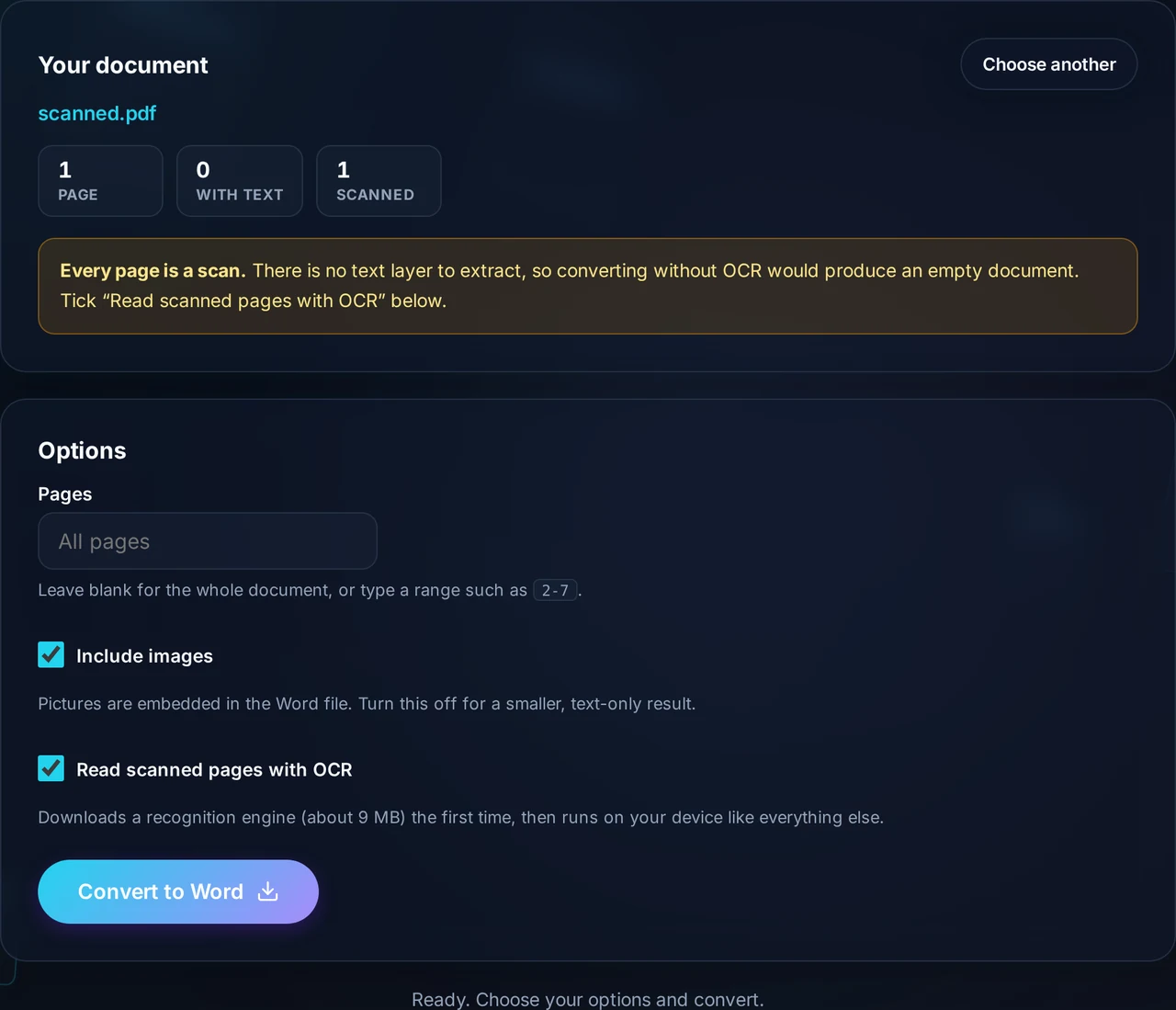
Produces a standard .docx for Word, Google Docs and LibreOffice. If the PDF is a scan, its pages are images with no text layer, so there is nothing to extract — run OCR first.

Privacy Focused

🔒 Local Processing. Your data never leaves your device.

Instant Results

🌐 Fully Client-Side. Runs instantly in your browser.

No Signup

⚡ No accounts. No hassle. Just open and use.

Browser Based

🚀 Works right in your browser. No installs, no downloads.

Get editable text out of a PDF, without uploading it

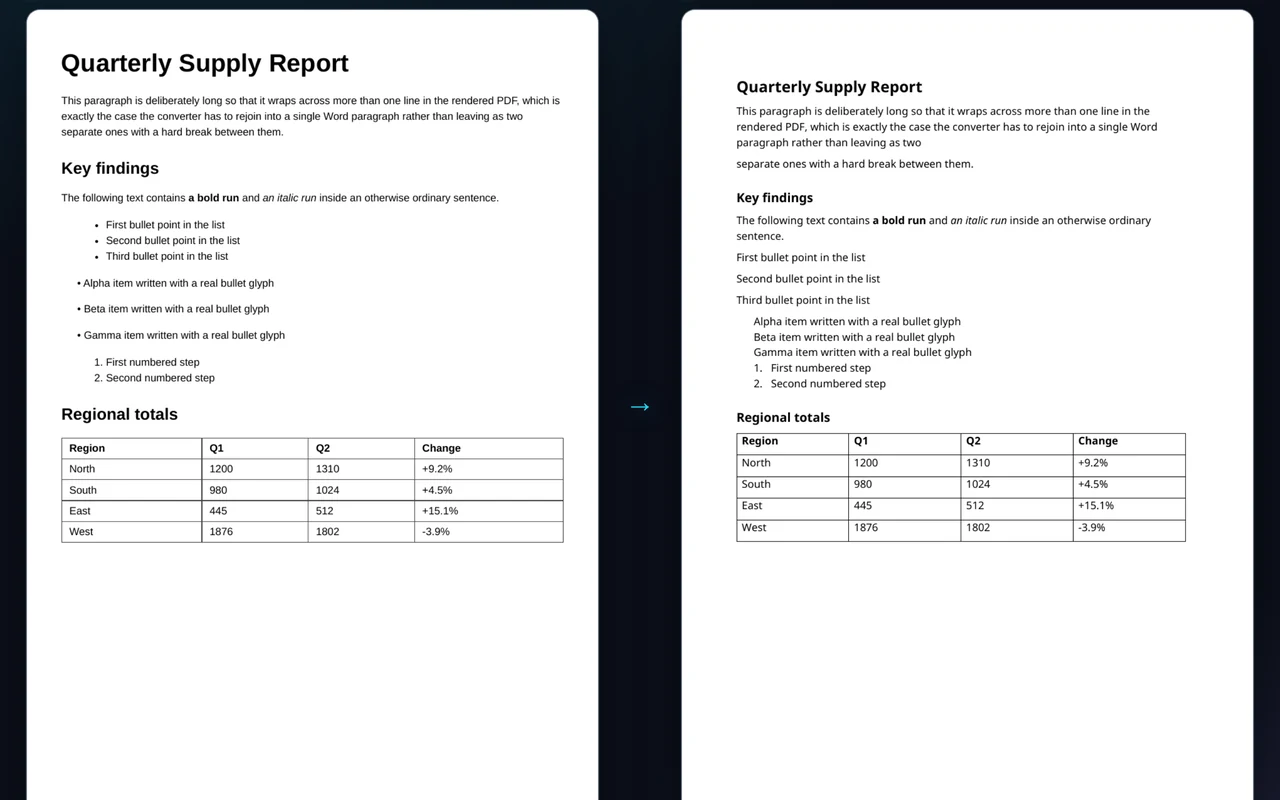
PDF to Word turns a PDF into an editable .docx you can open in Word, Google Docs or LibreOffice. Headings, bold text and paragraphs are rebuilt as real text, not pictures. It runs entirely in your browser, so the file is never uploaded.

A PDF is designed to look the same everywhere, which is exactly what makes it awkward to edit. When you need to reuse a contract clause, update last quarter's report or fix a typo in a document whose original file is long gone, converting to Word is the shortest path. The catch is that most converters ask you to upload the document to a server first — a bad trade when the file is a contract, an invoice or anything with personal details in it.

This converter does the work on your own device. Your PDF is read in the browser, the text is pulled out with its font sizes and weights, and a real Word document is assembled locally. Nothing is transmitted, nothing is stored, and you can disconnect from the internet once the page has loaded and it will still work.

The output is genuinely editable. Lines are grouped back into paragraphs, larger text becomes Heading 1 or Heading 2, and bold and italic runs are preserved, so you can restyle the document in Word instead of retyping it. That matters more than pixel-perfect mimicry: a converter that reproduces the layout with hundreds of floating text boxes looks impressive and is miserable to actually edit.

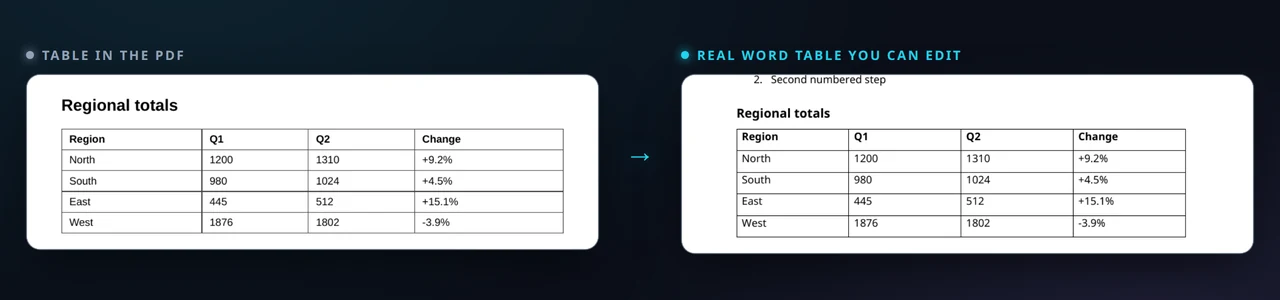
Be aware of the honest limit — a PDF stores text and positions, not a document structure, so multi-column layouts and complex tables are approximated rather than reproduced exactly. If your PDF is a scan, there is no text to extract at all; run it through an OCR step first. For plain text without any formatting, Extract Text is quicker, and PDF to HTML is the better choice for web content.

When converting a PDF to Word helps

How to convert a PDF to Word

The conversion is one step; the options only matter if you want to fine-tune the result.

Step 1: Open your PDF

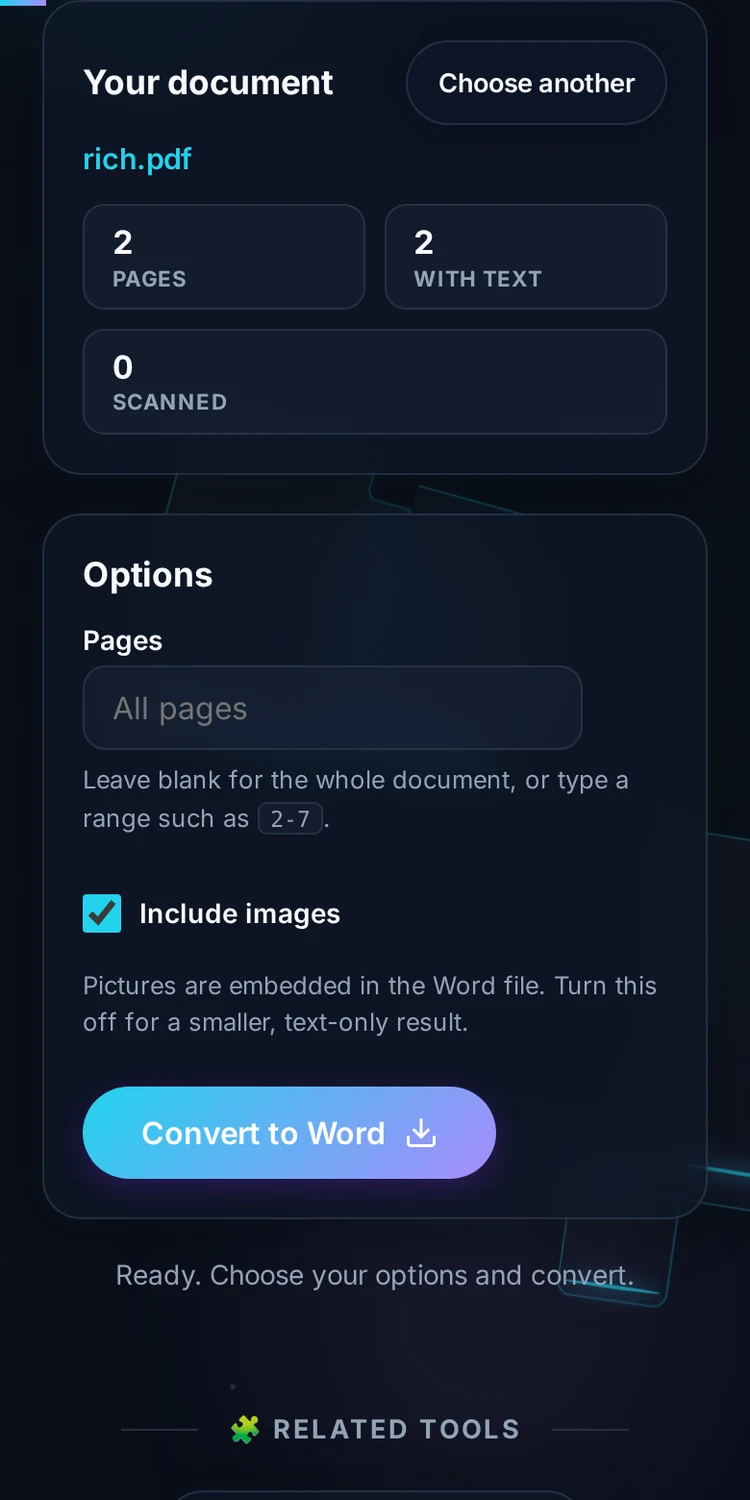
Drag the file onto the upload area or click to browse. The file is read in your browser and the page count appears straight away — nothing is uploaded.

Step 2: Choose what to keep

Leave Detect headings on to turn oversized lines into Word headings, and Keep bold and italic on to carry those runs across. Turn both off if you want flat, unstyled text.

Step 3: Pick your page range

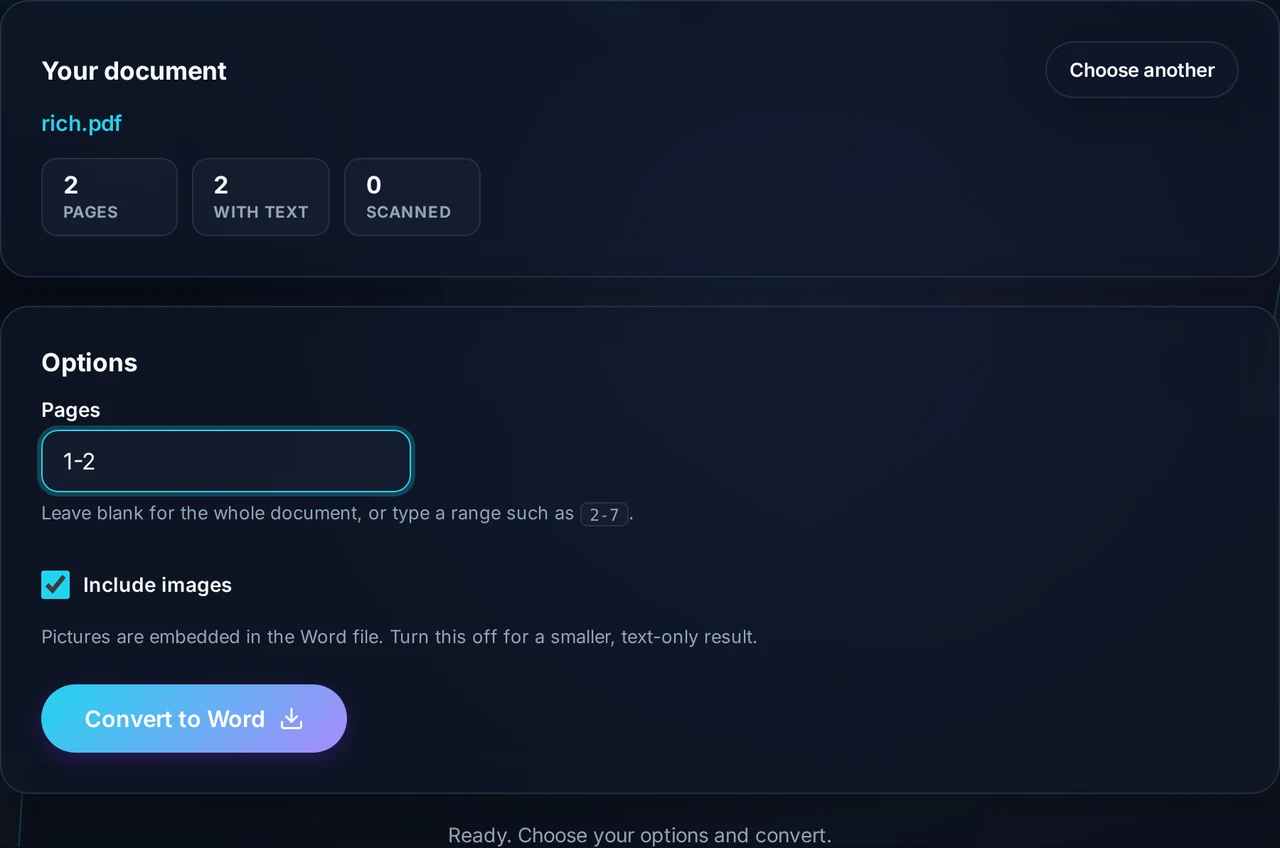
Convert the whole document, or enter a range like "1-5, 8" to take only the pages you need.

Step 4: Convert and download

Click Convert to Word. The .docx is assembled on your device and downloads immediately, ready to open in Word, Google Docs or LibreOffice.

Realistic example. A 12-page report where only the executive summary matters: enter "1-3" as the range, keep heading detection on, and you get a short Word file whose section titles are already real headings you can navigate in the sidebar.

Advanced tip. If the PDF uses several text sizes for emphasis rather than for structure, heading detection can be over-eager. Turn it off and apply your own styles in Word — it is faster than removing headings one at a time.

Common mistake to avoid. If the converted file comes out empty, the PDF is almost certainly a scan: the pages are images with no text layer, so there is nothing to extract. Run it through OCR first.

Recommendation. Need the file smaller before emailing it? Compress PDF handles that. Locked file? Unlock PDF first.

Frequently Asked Questions

Is my PDF uploaded anywhere?

No. The file is read and converted inside your browser, so it never leaves your device and is never sent to a server. Once the page has loaded you can go offline and the converter still works. That matters for contracts, invoices, medical letters and anything else you would rather not hand to a stranger's cloud.

Will the Word file look exactly like the PDF?

Not exactly, and that is deliberate. A PDF stores text and its position on the page, not a document structure, so any converter has to make a choice. This one rebuilds paragraphs, headings and bold text so the result is genuinely editable in Word. Converters that reproduce the layout precisely do it with hundreds of floating text boxes, which look right but are painful to edit.

Why is my converted document empty?

Your PDF is almost certainly a scan. Scanned pages are images of text, with no text layer for any converter to read, so nothing can be extracted. You need OCR (optical character recognition) to create that text layer first, after which the conversion will work normally.

Can I convert only some pages?

Yes. Enter a range such as "1-5, 8" in the page range box and only those pages are converted. This is useful when you only need one section of a long report, and it keeps the resulting Word file small and quick to open.

Does it keep headings, bold and italic?

Yes, where the PDF makes them detectable. Lines noticeably larger than the body text become Word headings, and runs whose font is bold or italic keep that styling. Both behaviours are switches you can turn off if you would rather start from flat text and apply your own styles.

What about tables and multi-column layouts?

They are approximated. Text is read in reading order and regrouped into paragraphs, so a simple two-column page usually comes through readably, while complex tables lose their grid and arrive as sequential paragraphs. If a table is the main thing you need, converting that page to HTML with PDF to HTML often preserves more of the structure.

Can I open the file in Google Docs or LibreOffice?

Yes. The tool writes a standard .docx, the same Office Open XML format Word itself uses, so Google Docs, LibreOffice Writer, Pages and WPS all open it. You can upload it straight to Google Drive and it will convert cleanly.

Is there a file size or page limit?

There is no artificial limit. Because the work happens on your own machine, the only real constraint is your device's memory. Very large documents take longer and use more RAM, so on a phone a several-hundred-page file may be slow — converting a page range is the practical workaround.

Is it really free, with no watermark or signup?

Yes. There is no account, no email, no trial and no watermark added to the output. The tool is free to use as often as you like, and since the conversion happens locally there are no server costs to recover.

Still have questions?

If you can't find the answer you're looking for, feel free to contact our support team.

Contact Us