Excel to XML Folder Generator

Bulk generate XML files inside unique folders based on your dataset.

100% Browser-Based Local Processing

1. Upload Sources

Drop Excel or Click to Browse

Drop XML or Click to Browse

2. Output Config

3. Finalize

Awaiting configuration...
Select mapping to begin

Frequently Asked Questions

How do I generate XML files from Excel in bulk?

Upload your Excel or CSV dataset and an XML template, map the template's placeholders to your columns, choose the ID column for folder naming and the row range, then click Generate. The tool fills the template from each row and returns a ZIP of structured folders — one XML file per record. A live preview lets you check the first row first. Everything runs in your browser.

Does this upload my Excel or XML, and does it work offline?

No upload, and yes it works offline. The spreadsheet is parsed, the template is filled, and the ZIP is built entirely in your browser using JavaScript — there's no server receiving your files, no logging, and no tracking. That matters because datasets often hold real records. Once the page has loaded it keeps working with no internet connection, which you can confirm in your browser's network tab.

What file formats can I use for the dataset?

Excel .xlsx and .xls, plus .csv. The tool reads the sheet in your browser, pulling out the header row and data rows so you can map columns to template placeholders. CSV works well for simple, flat data exported from almost anything; the Excel formats are handy when your source is already a workbook. Whichever you use, the file is read locally and never uploaded.

How does the XML template and its placeholders work?

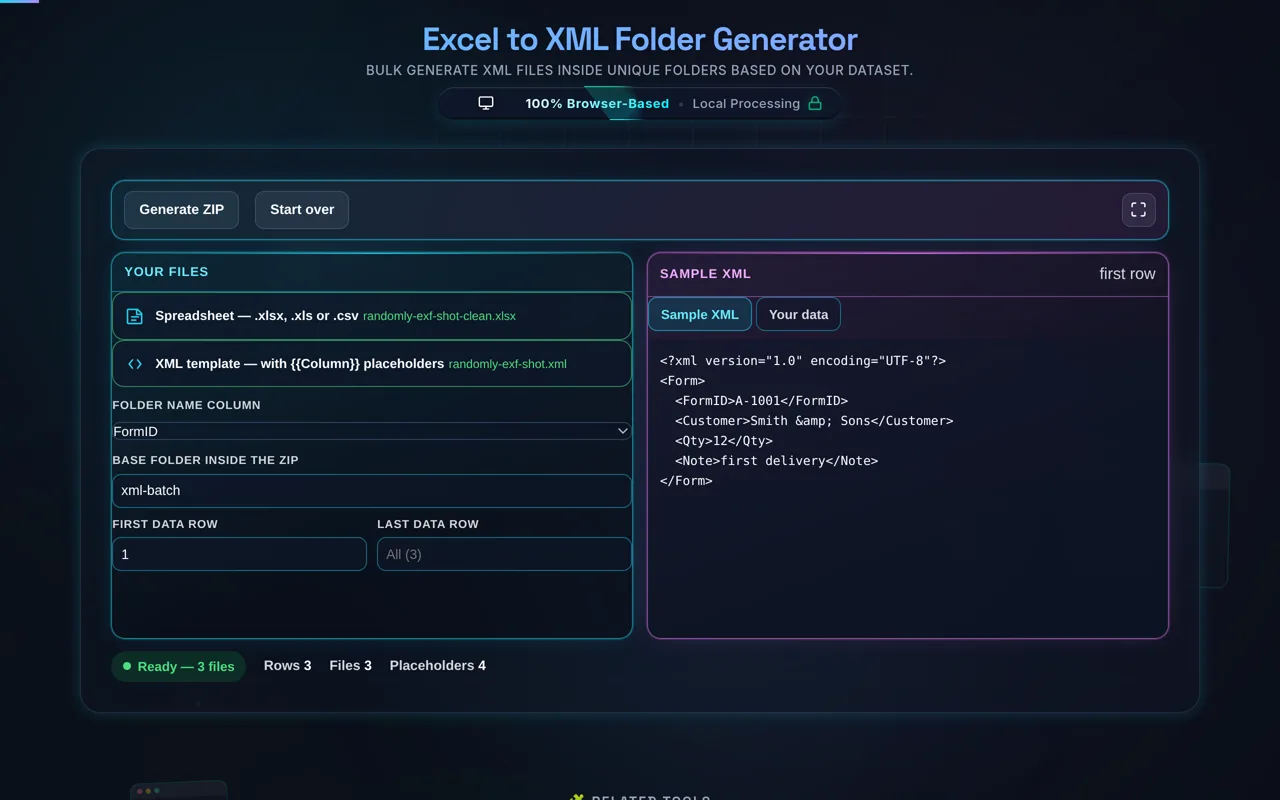
Your template is a normal .xml file with placeholders where row values should go. For each processed row, the tool substitutes those placeholders with the matching column's value, producing one filled XML file per row. This keeps the structure fixed and consistent across every record while the data varies. Design the template once, map it to your columns, and generate the whole batch from it.

What is the FormID column used for?

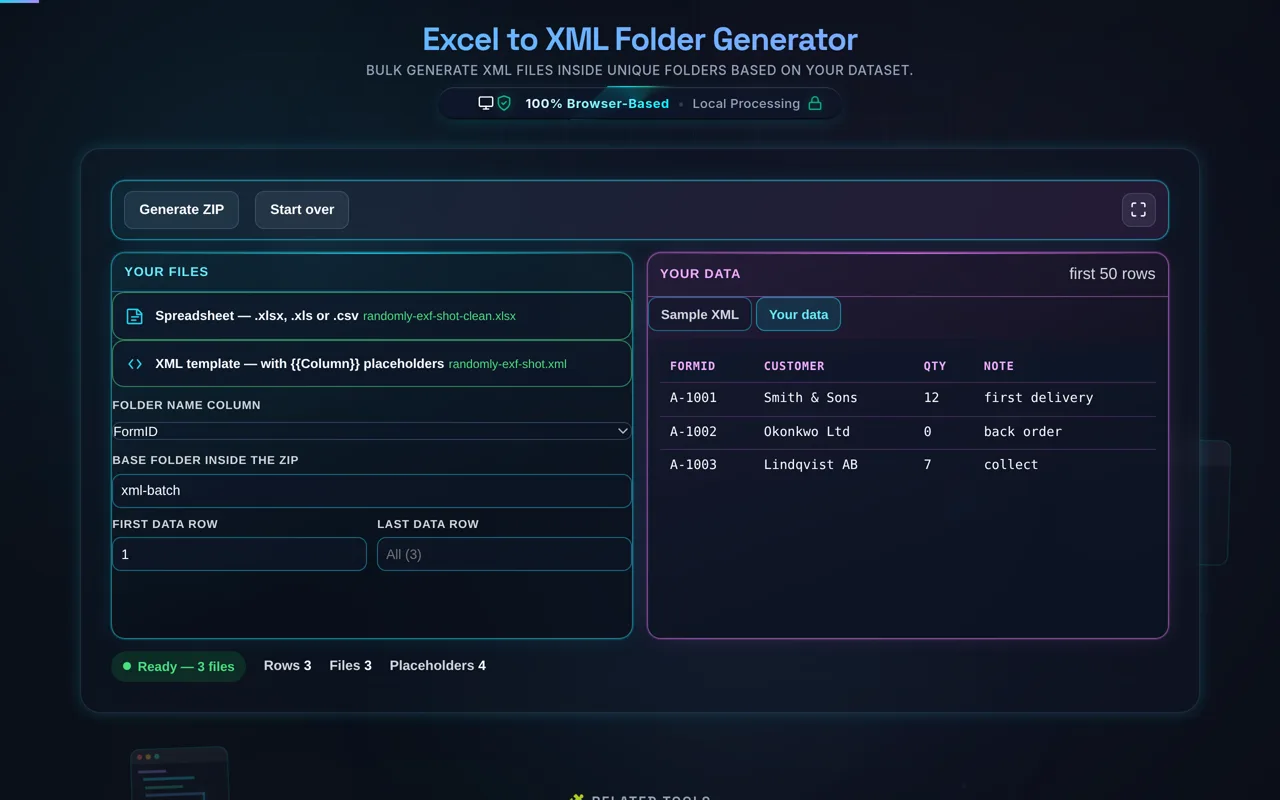
It drives the naming and foldering. The value in your chosen ID column (for example a form or record ID) is used to name each row's folder and file, so the output is organized per record rather than a flat pile of files. Combined with the Base Output Path, it gives you a tidy folder tree inside the ZIP — one clearly named folder for each row you generate.

Can I choose which rows to process?

Yes. Set a Start Row and End Row to process exactly the records you want — the whole dataset, or just a slice. This is useful for testing (generate a handful first, confirm the output, then run the rest) and for splitting a large job into batches. Make sure the range matches your data so you don't accidentally skip rows or generate empty ones.

What does the live sample preview show?

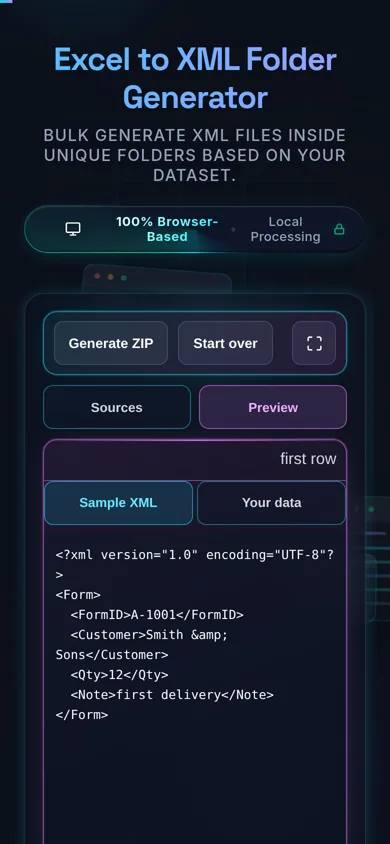
It shows the generated XML for the first data row, using your current template and mapping, before you run the full batch. Think of it as a dry run: if the preview looks right, the rest of the rows will follow the same pattern; if a field is empty or wrong, you can fix the template or mapping first. It's the fastest way to catch mistakes early.

How is the output structured, and how do I get it?

You get a single ZIP file. Inside, files are organized under your Base Output Path into folders named from the ID column — typically one folder and XML file per processed row. The ZIP is built in your browser and downloaded directly, so you just unzip it and use the files. Nothing is stored on a server or sent anywhere; the download is entirely local.

How large a dataset can it handle?

It depends on your device. Because parsing, filling, and zipping all happen in the browser, the limit is your machine's memory and CPU rather than a server cap. Hundreds or a few thousand rows are usually fine; very large datasets (tens of thousands of rows, or huge templates) can be slow or memory-heavy. If you hit limits, use the row range to process the data in smaller batches.

What happens if a template placeholder has no matching column?

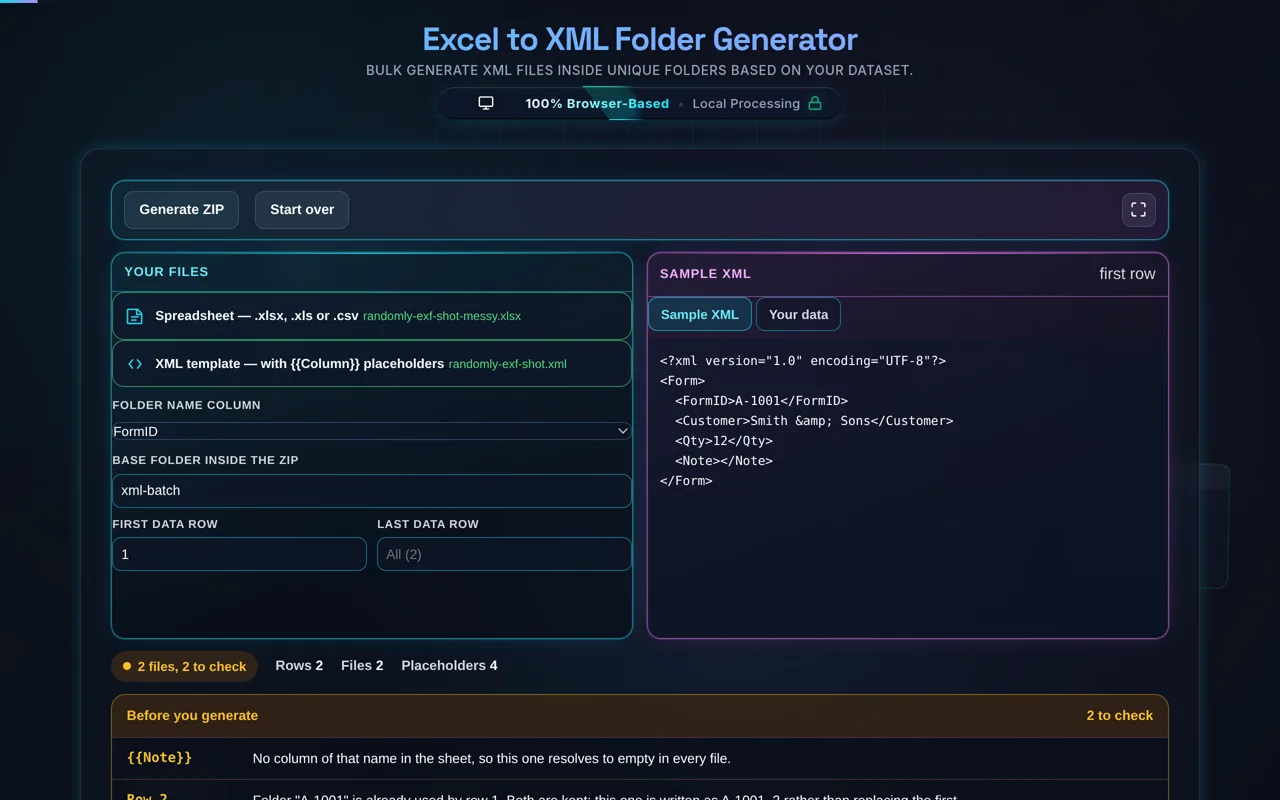
It resolves to empty. The tool substitutes each placeholder with its mapped column's value, and if no column matches, that spot is simply left blank rather than throwing the whole batch out. This is why the live preview matters: an unexpectedly empty field usually means a placeholder name doesn't match a header. Check your template's field names against the dataset's columns.

Can I use a CSV instead of a real Excel file?

Yes. CSV is fully supported alongside .xlsx and .xls, and it's often the simplest option since almost every system can export it. The tool reads the header row for your column names and the data rows for the values, exactly as it does with a workbook. If your data is flat and you already have a CSV, there's no need to convert it to Excel first.

Is it free, and are there limits?

Yes, completely free — no payment, no signup, no account, and no usage caps or watermarks. Since everything runs in your browser, there's nothing for us to meter; the only practical limit is your device's performance on very large datasets. Generate as many batches as you like, including offline once the page has loaded.

Still have questions?

If you can't find the answer you're looking for, feel free to contact our support team.

Contact Us

Privacy Focused

🔒 Local Processing. Your code never leaves your device.

Instant Results

🌐 Fully Client-Side. Runs instantly in your browser.

No Signup

⚡ No accounts. No API keys. Just open and use.

Browser Based

🚀 No installs, no CLI, no build step.

Streamlined Bulk XML Generation

Managing extensive datasets requires robust tools for automation. Our **Excel to XML Folder Generator** provides a high-performance workspace for developers to map Excel columns to XML structures. By injecting unique FormIDs into a standardized template, this tool creates a hierarchy of folders, each containing its respective XML document. This process is crucial for high-volume data entries, ensuring that files are organized, valid, and ready for deployment without manual intervention.

How to Generate Folders Effectively

To begin, upload your source Excel document. The system detects headers automatically. Next, upload an XML template containing a <FormID>...</FormID> element. In the configuration panel, map the FormID column to your Excel header. You can specify a "Base Output Path" to group all generated folders under a single parent directory within the ZIP archive. Once configured, the client-side engine processes your data and provides a ZIP package containing the complete folder structure.

Technical Requirements & FAQ

What XML structure is required?

The tool specifically targets the <FormID> tag. Ensure your template contains this tag to allow for dynamic replacement. If your template uses a different tag name, you may need to update the template to match. The replacement logic is case-insensitive and handles multi-line content within the tags effectively.

Is there a row limit?

While there is no hard-coded row limit, browser memory usually constrains processing to approximately 10,000 to 20,000 rows depending on the size of your XML template. For extremely large batches, we recommend processing in segments using the "Start Row" and "End Row" selectors.

Need a hand?

Still have questions?

If you can't find the answer you're looking for, feel free to contact our support team.

Contact Us